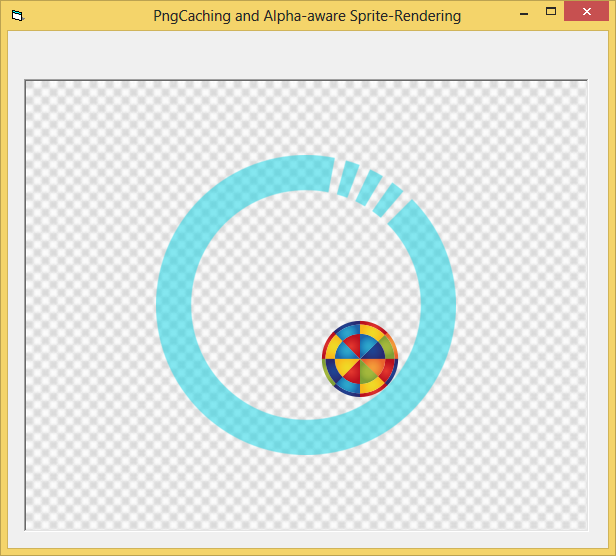
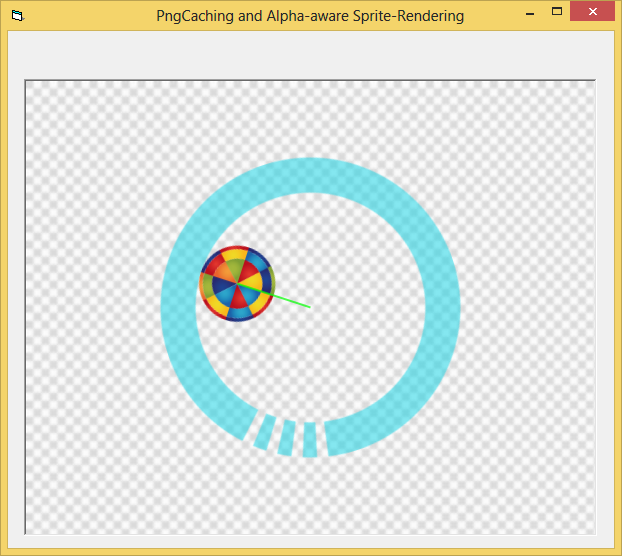
I have a picturebox with an image of a circle that has a round ball in it. I know how to rotate the circle and the ball as a single object but how can I just rotate the ball only so that it moves around the inside circumference of the circle without rotating the circle
Anything I post is an example only and is not intended to be the only solution, the total solution nor the final solution to your request nor do I claim that it is. If you find it useful then it is entirely up to you to make whatever changes necessary you feel are adequate for your purposes.
I would think that the ball would need to be a separate image in order to do that.
Probably so. The code I have can do either one by itself or both but it cannot do one and not the other.
I'm also thinking about how the the second hand on an analog clock moves around the inner circle but the only examples I find use a Line method and the logic would not apply to a ball image
Anything I post is an example only and is not intended to be the only solution, the total solution nor the final solution to your request nor do I claim that it is. If you find it useful then it is entirely up to you to make whatever changes necessary you feel are adequate for your purposes.
Maybe you should show what code you are using and better describe how the inner ball moves about the outer circle, i.e., along the circumferences only, any where within the outer circumference, some other requirement?
Insomnia is just a byproduct of, "It can't be done"
...
I'm also thinking about how the the second hand on an analog clock moves around the inner circle but the only examples I find use a Line method and the logic would not apply to a ball image
I guess you didn't see this post.
It has analog hands that move around the face of the clock (The DragRotateImage.zip file).
It was based on an earlier example (DynamicTransparentRotateBlit.zip).
If you run the Dynamic one, you'll see a black picturebox in the upper left (there is a white picturebox next to it, but it isn't as obvious).
Click and drag in one of the corners of that picturebox and draw a little circle. As you draw you should see it being also drawn and rotated in a box below that has an image background. That imageBackground could be your Circle image, and whatever you drawn in the upper picturboxes represent your ball image.
I guess you didn't see this post.
It has analog hands that move around the face of the clock (The DragRotateImage.zip file).
It was based on an earlier example (DynamicTransparentRotateBlit.zip).
If you run the Dynamic one, you'll see a black picturebox in the upper left (there is a white picturebox next to it, but it isn't as obvious).
Click and drag in one of the corners of that picturebox and draw a little circle. As you draw you should see it being also drawn and rotated in a box below that has an image background. That imageBackground could be your Circle image, and whatever you drawn in the upper picturboxes represent your ball image.
Yes I did see that post. As a matter of fact I had that in my collection and it was one I just got through changing a bit about two hours ago
I have no idea what you are talking about you'll see a black picturebox in the upper left (there is a white picturebox next to it, but it isn't as obvious).
Click and drag in one of the corners of that picturebox and draw a little circle. As you draw you should see it being also drawn and rotated in a box below that has an image background.
What do you mean click and drag........?
The one posted here is my modification to the original
Last edited by jmsrickland; Jul 8th, 2015 at 05:44 PM.
Anything I post is an example only and is not intended to be the only solution, the total solution nor the final solution to your request nor do I claim that it is. If you find it useful then it is entirely up to you to make whatever changes necessary you feel are adequate for your purposes.
The post Link was to Post #3 in that thread.
Attached to that post were two zip files, one being the clock where you dragged with left or right button to move the minute or hour hand.
The other link was a different, older example, which was copied and modified to make the clock example.
Your modification "to the original", wasn't even the original clock version in post#3. It was one of the later ones in the thread after the vertical scrollbar was added.
The first attachment in Post #3, is the "original" original, which I posted because it was "the source" the clock version was derived from.
It also is a completely different example since it has nothing to do with a clock.
It is that 28.9 KB version I was referring to, which has the two pictureboxes that you can drag on to draw fat colored lines (double click to clear), and see the results of what you are drawing being rotated continually in the a lower picturebox as you draw.
The technique of drawing an image twice, on a black background and on a white background, each acting like 1/2 of the drawing and 1/2 of the mask (the drawing on the white background transfers the zero bits to the image, and the drawing on the black background transfers the one bits to the image), I thought was an interesting technique, I thought.
Usually you have a mask, which is black and white to prepare the surface first, i.e. "cutting a hole" in the image, and then you fill in the hole with the "sprite" image.
Since my method just transfers the 0's of the color in one operation and the 1's of the colors in the other operation, neither image is technically a mask.
It doesn't matter which one you do first, the result will be the same.
Using a true mask can be more efficient, thus a little faster, because if you use a monochrome 1-bit per pixel image as the size of the mask, it is 24 times smaller compared to a full rgb bitmap so transfers faster to the graphics card.
But, drawing twice on different backgrounds, and bitblting them in either order seems convenient for some cases.
So, that example just show that dynamical drawing, bitblting and rotation all happening continuously.
OK, I see what you are talking about now. I guess I downloaded everything except the one you are referring to since I have had these zip files in my collection since 4/11/15 but had forgotten about them until yesterday.
Anything I post is an example only and is not intended to be the only solution, the total solution nor the final solution to your request nor do I claim that it is. If you find it useful then it is entirely up to you to make whatever changes necessary you feel are adequate for your purposes.
Why is the green ball when drawn by code (Command 'Draw Circle') not the same green when drawn in big circle
Why do I have to have the grey backcolor of the big circle. I tried other colors but the solid ball does not show
Anything I post is an example only and is not intended to be the only solution, the total solution nor the final solution to your request nor do I claim that it is. If you find it useful then it is entirely up to you to make whatever changes necessary you feel are adequate for your purposes.
Why is the green ball when drawn by code (Command 'Draw Circle') not the same green when drawn in big circle
Why do I have to have the grey backcolor of the big circle. I tried other colors but the solid ball does not show
OK, never mind, I figured it out
Anything I post is an example only and is not intended to be the only solution, the total solution nor the final solution to your request nor do I claim that it is. If you find it useful then it is entirely up to you to make whatever changes necessary you feel are adequate for your purposes.
You can also use TransparentBlt function, which allow set a color key for "transparent" color.
A better way these days (to get rid of the "jagged edges") would be,
to render PNG-image-resources with the AlphaBlend-API.
@jmsrickland
It shouldn't be that hard, to get some nice PNG-Images from the Web -
there's dozens of sites where one can download such ClipArt with
proper (commercial redistribution allowed) licenses.
To render these PNGs properly (respecting their Alpha-Channel), one
can use e.g. the cPngCacheGDIP Class which is using GDI+ internally
and was posted already serveral times into the Forum.
I've included the thing as a dropin-class within the following Demo: PngSprites2.zip
With that Class in place, all you need is the following Code in a Startup-Module:
Code:
Option Explicit

Public PngCache As New cPngCacheGDIP 'let's declare it here for global usage

Sub Main()
  'add true Alpha-Channel-Png-resources (once, at App-Startup)
  PngCache.AddImage "OuterCircle", App.Path & "\Res\OuterCircle.png"
  PngCache.AddImage "InnerCircle", App.Path & "\Res\InnerCircle.png"

  fTest.Show 'load and show the Main-Form
End Sub
And the following is the code in the Test-Form:
Code:
Option Explicit

Private R, cx, cy, Deg

Private Sub Form_Load()
  Set Canvas.Picture = LoadPicture(App.Path & "\Res\Checker.jpg") 'add a static BackGround-Image onto our Canvas

  R = 77 'Radius to the center-point of the "InnerCircle"-Image
  cx = Canvas.ScaleWidth \ 2  'x-center on the Canvas-PictureBox
  cy = Canvas.ScaleHeight \ 2 'y-center on the Canvas-PictureBox
End Sub

Private Sub Redraw() 'our central scene-drawing-routine
  Canvas.Cls 'clear anything on the backbuffer (leaving only the background-picture)

    DrawCentered "OuterCircle", cx, cy
    DrawCentered "InnerCircle", cx + R * Cos(Deg * Atn(1) / 45), cy + R * Sin(Deg * Atn(1) / 45)

  Canvas.Refresh 'flip the DoubleBuffer to the Screen
End Sub

Private Sub DrawCentered(ImgKey, x, y)
  PngCache.AlphaRenderTo Canvas.hDC, ImgKey, x - PngCache.Width(ImgKey) / 2, y - PngCache.Height(ImgKey) / 2
End Sub

Private Sub tmrRefresh_Timer()
  Deg = (Deg + 1) Mod 360
  Redraw
End Sub
Yes, but it little slowly. OP show image without smooth edge and it don't cause problems.
The Demo is neither "slow", nor will it "cause problems" (the GDI-AlphaBlend-call
is hardware-accelerated on most systems, even on Win7 and Win8).
What's achieved with the current Canvas- and PNGImage-Sizes is
(on my machine here) about 750 ReDraws per Second (FPS)...
That's about 10 times higher than the Monitor-Refresh-Rate -
and will cause a nearly non-measurable CPU-Load, when you update
the thing within a Timer, which is set to e.g. 40msec.
And when the Angle-Position is not updated within a Timer (usage in
"non-animated mode"), then the behaviour is mostly static (then only
redrawing due to an occasional update of the Angle from a User-Action).
In case you want to reproduce my performance-results, you can change
*only* the Form-Code in the original Zip-Example to the following:
Code:
Option Explicit

Private R, cx, cy, Deg, FPS

Private Sub Form_Load()
  Set Canvas.Picture = LoadPicture(App.Path & "\Res\Checker.jpg") 'add a static BackGround-Image onto our Canvas

  R = 77 'Radius to the center-point of the "InnerCircle"-Image
  cx = Canvas.ScaleWidth \ 2  'x-center on the Canvas-PictureBox
  cy = Canvas.ScaleHeight \ 2 'y-center on the Canvas-PictureBox

  tmrRefresh.Interval = 1000
End Sub

Private Sub Form_Activate()
  Do Until Len(Tag)
    Deg = (Deg + 1) Mod 360
    Redraw
    FPS = FPS + 1
    DoEvents
  Loop
  Unload Me
End Sub

Private Sub Redraw() 'our central scene-drawing-routine
  Canvas.Cls 'clear anything on the backbuffer (leaving only the background-picture)

    DrawCentered "OuterCircle", cx, cy
    DrawCentered "InnerCircle", cx + R * Cos(Deg * Atn(1) / 45), cy + R * Sin(Deg * Atn(1) / 45)

  Canvas.Refresh 'flip the DoubleBuffer to the Screen
End Sub

Private Sub DrawCentered(ImgKey, x, y)
  PngCache.AlphaRenderTo Canvas.hDC, ImgKey, x - PngCache.Width(ImgKey) / 2, y - PngCache.Height(ImgKey) / 2
End Sub

Private Sub Form_Unload(Cancel As Integer)
  If Len(Tag) Then Exit Sub Else Cancel = 1: Tag = "x"
End Sub

Private Sub tmrRefresh_Timer()
  Caption = FPS & " FPS": FPS = 0
End Sub
The Demo is neither "slow", nor will it "cause problems" (the GDI-AlphaBlend-call
is hardware-accelerated on most systems, even on Win7 and Win8).
Yes, you right. I created the test of performance that compares FPS between TransparentBlt and AlphaBlend. TransparentBlt even slowly than AlphaBlend. Probably TransparentBlt didn't used hardware acceleration unlike AlphaBlend.
BTW i tested it in WinXP, maybe in new version of Windows this function have a support of acceleration.
Code:
Option Explicit

Private Declare Function AlphaBlend Lib "msimg32" (ByVal hdcDest As Long, ByVal xDest As Long, ByVal yDest As Long, ByVal WidthDest As Long, ByVal HeightDest As Long, ByVal hdcSrc As Long, ByVal xSrc As Long, ByVal ySrc As Long, ByVal WidthSrc As Long, ByVal HeightSrc As Long, ByVal Blendfunc As Long) As Long
Private Declare Function TransparentBlt Lib "msimg32" (ByVal hdc As Long, ByVal x As Long, ByVal y As Long, ByVal nWidth As Long, ByVal nHeight As Long, ByVal hSrcDC As Long, ByVal xSrc As Long, ByVal ySrc As Long, ByVal nSrcWidth As Long, ByVal nSrcHeight As Long, ByVal crTransparent As Long) As Long
Private Declare Function CreateCompatibleDC Lib "gdi32" (ByVal hdc As Long) As Long
Private Declare Function DeleteDC Lib "gdi32" (ByVal hdc As Long) As Long
Private Declare Function SelectObject Lib "gdi32" (ByVal hdc As Long, ByVal hObject As Long) As Long

Dim picSprite   As StdPicture
Dim Running     As Boolean
Dim fps         As Long

Private Sub cmdStart_Click()
    Dim srcDC   As Long
    Dim oldBMP  As Long
    Dim x       As Long
    Dim y       As Long
    Dim w       As Long
    Dim h       As Long
    Dim phase   As Single
    Dim prevTim As Single

    optFunc(0).Enabled = False
    optFunc(1).Enabled = False

    Running = True

    srcDC = CreateCompatibleDC(picCanvas.hdc)
    oldBMP = SelectObject(srcDC, picSprite.Handle)

    w = ScaleX(picSprite.Width, vbHimetric, vbPixels)
    h = ScaleY(picSprite.Height, vbHimetric, vbPixels)

    prevTim = Timer

    If optFunc(0).Value Then

        Do While Running

            x = (Cos(phase) * (picCanvas.ScaleWidth - w) + (picCanvas.ScaleWidth - w)) / 2
            y = (Sin(phase) * (picCanvas.ScaleHeight - h) + (picCanvas.ScaleHeight - h)) / 2

            TransparentBlt picCanvas.hdc, x, y, w, h, srcDC, 0, 0, w, h, vbBlack

            phase = phase + 0.001
            fps = fps + 1

            If (fps And &HFF) = 0 Then DoEvents

            If Timer - prevTim >= 1 Then

                prevTim = Timer
                lblFPS = "FPS:" & fps
                fps = 0

            End If

        Loop

    Else

        Do While Running

            x = (Cos(phase) * (picCanvas.ScaleWidth - w) + (picCanvas.ScaleWidth - w)) / 2
            y = (Sin(phase) * (picCanvas.ScaleHeight - h) + (picCanvas.ScaleHeight - h)) / 2

            AlphaBlend picCanvas.hdc, x, y, w, h, srcDC, 0, 0, w, h, 33488896

            phase = phase + 0.001
            fps = fps + 1

            If (fps And &HFF) = 0 Then DoEvents

            If Timer - prevTim >= 1 Then

                prevTim = Timer
                lblFPS = "FPS:" & fps
                fps = 0

            End If

        Loop
    End If

    SelectObject srcDC, oldBMP
    DeleteDC srcDC

    optFunc(0).Enabled = True
    optFunc(1).Enabled = True

End Sub

Private Sub cmdStop_Click()
    Running = False
End Sub

Private Sub Form_Load()
    Set picSprite = LoadPicture(App.Path & "\bitmap.bmp")
End Sub

Private Sub Form_Unload(Cancel As Integer)
    If Running Then Cancel = True
End Sub
Last edited by The trick; Jul 11th, 2015 at 04:18 AM.
Reason: ScreenShot
Is it supposed to smear the colors around in a circular motion
Anything I post is an example only and is not intended to be the only solution, the total solution nor the final solution to your request nor do I claim that it is. If you find it useful then it is entirely up to you to make whatever changes necessary you feel are adequate for your purposes.
Is it supposed to smear the colors around in a circular motion
Yes, yes it is.
It is a speed test of the drawing, so there is no clearing to detract from the comparison.
p.s.
I'm on a Business laptop, with an Intel i5 processor, Win7-64 Pro, and probably Intel integrated graphics.
The AlphaBlend is a little slower on this machine compared to the TransBlit, I assume because we don't have a dedicated graphic card on board.
In the IDE or as an Exe doesn't make too much difference.
The AlphaBlend FPS:13975
The TransBlit FPS:18558
Since "my method" uses two bitblts, either of these two methods will be more than twice as fast as my code.
Also, as implemented bitblting the whole rotation area, not just the ball image, it is just that much slower.
For a GUI element being operated by a user, and not a whole lot of other things going on, it won't make a noticeable difference to the user, but if I was just moving a simple image around, not rotating a complex image, I would use one of the methods mentioned by Schmidt or The trick. The AlphaBlended version would be best for blending well with variable background colors.
Last edited by passel; Jul 10th, 2015 at 06:37 PM.
Maybe one more thing in this regard which is worth mentioning...
All the current Demos which deal with such "rotated Placements" (Passels, Tricks as well as mine)
lack a certain thing (which becomes apparent especially in slow-motion) - they all don't support
SubPixel-Precision (in the placement of blitted rectangles, or in "World-Transform"-Rotations as well).
That means, that e.g. calculated Placement-Coords which come out with e.g. (x,y) = (111.23, 123.45)
will be rounded to the nearest Pixel (when GDI- BitBlt, TransparentBlt or AlphaBlend-calls are used,
and as said - also the GDI-WorldTransform calls would have this limitation).
You can see what I mean, when looking at the (slower rotating) Demo (PngSprites2.zip)
which was posted in #12... The InnerCircle appears to move "jumpy" on occasion.
So, to ensure a smooth drawing (as well as smooth rotations) one will have to work
with libraries other than GDI, which support sub-pixel-precision:
- GDI+
-.NET-System.Drawing (which basically wraps GDI+)
- Cairo http://cairographics.org/
- Agg http://www.antigrain.com/
- ... there's more in the larger GUI-frameworks as e.g. Googles Skia- or QTs QPainter-APIs
Below is a SubPixel supporting Demo for those who want to check out the difference
(based on the Cairo-Wrapper-Classes in vbRichClient5).
@Passel
What most of the above mentioned libs also support is, that you can wrap a single
Resource-Image (Icons, Sprites, whatever) in a relatively thin layer, which e.g. in Cairo
is called "a Pattern". And on such an Image-wrapping Pattern you can then individually
adjust "Sub-Rotations" and other transforms at a "Sprite-individual level", which then
will come into play (and are respected) "at render-time" of that single Sprite onto the
larger Context (the small function below would ensure such an individual Pattern-Wrapping).
Code:
Private Function PatFromImg(Img As cCairoSurface, M As cCairoMatrix, PatDeg) As cCairoPattern
  Set PatFromImg = Img.CreateSurfacePattern 'wrap the Img-Surface in a Pattern (that's a non-expensive Op)
    M.TranslateCoords Img.Width / 2, Img.Height / 2 'shift the Matrix-Origin into the center of the Img in question
    M.RotateCoordsDeg -PatDeg 'define also a Rotation for this local Img-Pattern, in case it will be drawn later
  Set PatFromImg.Matrix = M 'set the just transformed Pattern-Matrix 'M' as the new "Img-local" Pattern-Matrix
End Function
In the Demo below, this little Helper-routine is used, to be able to rotate the "InnerCircle"-Sprite
independently from the "OuterCirlce"-Sprite (the outer circle rotating backwards).
The used mechanism could easily be adapted, to e.g. make the InnerCircle
rotate not as a Clock-Hand (as it does currently), but instead as if it would
have "friction with the OuterCircle"...



 Reply With Quote
 Originally Posted by DataMiser