|

-
Oct 1st, 2016, 07:47 AM
#1
Thread Starter
Lively Member


 [RESOLVED] How to Reduce CPU usage [RESOLVED] How to Reduce CPU usage
Hi, all I just learned Datatables in VB.Net. I implemented it in VB.net App in order to show me the color code of certain software, so that, it would be easy to find the right one and use it. I got a problem in it. This time i used more coding rather than drag&drops. Here's an Screenshot of the app :
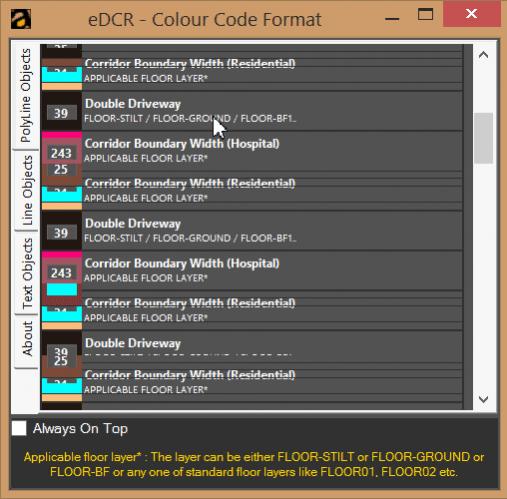
U can see the Stutter right..?? It is caused while dragging... Also the CPU usage pump up to 30-40% of CPU (The project exe file takes upto 20%-25% approx). I don't know how to optimize/reduce the CPU usage. I'm uploading the full project as ZIP with this Thread. Help Please..
Project Zip :: *Uploaded without bin & obj as Shaggy Hiker instructed
PrjVJ.zip
Last edited by darkbb; Oct 1st, 2016 at 10:34 PM.
Reason: Reuploaded the attachement to remove exe & dll files as instructed by Shaggy Hiker
-
Oct 1st, 2016, 11:04 AM
#2
Re: How to Reduce CPU usage
Feel free to attach a project, but you must be sure that it does not contain compiled code. Forum rules prohibit compiled code because interesting things can be added to those. Therefore, remove all .exe and .dll files and post just the source code.
As to the question, it is time to do a bit of profiling. There are profilers built into VS, but it may be easier to just time things yourself using the Stopwatch object. I also have a thin profiler class posted in the .NET CodeBank. The purpose of all of this is to figure out what part of the code is actually taking the time. You may have a fair idea of where the problem lies, but timing different parts will likely allow you to narrow it down a bit more.
A stutter during dragging probably isn't the dragging itself. The problem, in that case, is largely due to the underlying window taking a long time to redraw itself. So, the problem is likely in the drawing for the underlying control.
My usual boring signature: Nothing
 
-
Oct 1st, 2016, 11:54 AM
#3
Thread Starter
Lively Member
Re: How to Reduce CPU usage
 Originally Posted by Shaggy Hiker

Feel free to attach a project, but you must be sure that it does not contain compiled code. Forum rules prohibit compiled code because interesting things can be added to those. Therefore, remove all .exe and .dll files and post just the source code.
As to the question, it is time to do a bit of profiling. There are profilers built into VS, but it may be easier to just time things yourself using the Stopwatch object. I also have a thin profiler class posted in the .NET CodeBank. The purpose of all of this is to figure out what part of the code is actually taking the time. You may have a fair idea of where the problem lies, but timing different parts will likely allow you to narrow it down a bit more.
A stutter during dragging probably isn't the dragging itself. The problem, in that case, is largely due to the underlying window taking a long time to redraw itself. So, the problem is likely in the drawing for the underlying control.
Thank you for ur quick reply. Sorry, I've never attached my project before in VBForums. I assure U i willnot do the same in future. I will look into the topic profiling & ur codebank classes.
Originally Posted by Shaggy Hiker
A stutter during dragging probably isn't the dragging itself. The problem, in that case, is largely due to the underlying window taking a long time to redraw itself. So, the problem is likely in the drawing for the underlying control.
Yep... As U say, i can see, its time taken to redraw itself. is there anything else to smoothen the stutter..?? (apart from profiling -- which i understand is for CPU usage)
and, can i change the looks of TabControl's Gray 3D layout..???
-
Oct 1st, 2016, 02:45 PM
#4
Re: How to Reduce CPU usage
You can attach projects, just remove the .exe and .dll files (there are a few other compiled items, but they aren't usually found in .NET projects). This generally just means removing the bin and obj folders. Those aren't really needed. If you delete them from your project then run it, VS will simply recreate them, so deleting them is something that gets recommended fairly often as solutions to certain types of issues. It may or may not help, but it's easy to do and harmless. So, if you remove those folders, the rest of the project is probably fine.
As to the stutter, what is that control, and are you painting it? If you are painting it then there is hope. If you are not doing the drawing, the easy thing to try is to see whether DoubleBuffering is set to True (or if it is even visible). Frankly the problem you are talking about doesn't seem like a double buffering issue, but it's just a property for the control, so it's super easy to try out. If the property doesn't exist, then you can expose it easily enough, but it may not be worth that.
My usual boring signature: Nothing
-
Oct 1st, 2016, 04:25 PM
#5
Re: How to Reduce CPU usage
Hi,
I had downloaded your project before it got removed and just had a chance to look it over. You came up with a nice visual appearance, but you have a few things working against you.
The first is that you are using the TabControl. The TabControl has a long history of being a PITA in regards to performance. The worst part is that it does not always cause issues; it appears to be somewhat related to to your graphics card.
The second issue is that you are effectively creating a grid layout by adding a TableLayoutPanel for each row of your grid and in that TLP you have many nested controls. Overall, there are a ton of controls on your display and all of those are getting drawn.
I'm thinking that you could achieve a similar look using a DataGridView with custom row painting. I will try to work up an example and post it later on.
-
Oct 1st, 2016, 10:42 PM
#6
Thread Starter
Lively Member
Re: How to Reduce CPU usage
Originally Posted by Shaggy Hiker
You can attach projects, just remove the .exe and .dll files (there are a few other compiled items, but they aren't usually found in .NET projects). This generally just means removing the bin and obj folders. Those aren't really needed. If you delete them from your project then run it, VS will simply recreate them, so deleting them is something that gets recommended fairly often as solutions to certain types of issues. It may or may not help, but it's easy to do and harmless. So, if you remove those folders, the rest of the project is probably fine.
DONE...!! Re-uploaded the attachment without obj & bin folder.
Originally Posted by Shaggy Hiker
As to the stutter, what is that control, and are you painting it? If you are painting it then there is hope. If you are not doing the drawing, the easy thing to try is to see whether DoubleBuffering is set to True (or if it is even visible). Frankly the problem you are talking about doesn't seem like a double buffering issue, but it's just a property for the control, so it's super easy to try out. If the property doesn't exist, then you can expose it easily enough, but it may not be worth that.
DoubleBuffering?? I'll look into that too.. & reply ASAP.
-
Oct 1st, 2016, 10:54 PM
#7
Thread Starter
Lively Member
Re: How to Reduce CPU usage
Originally Posted by TnTinMN
Hi,
I had downloaded your project before it got removed and just had a chance to look it over. You came up with a nice visual appearance, but you have a few things working against you.
Great...!!
Originally Posted by TnTinMN
The first is that you are using the TabControl. The TabControl has a long history of being a PITA in regards to performance. The worst part is that it does not always cause issues; it appears to be somewhat related to to your graphics card.
TabControl as PITA? U might be right, i noticed that while trying to change its visuals too. But, it turns out worse than default layout. and, i dont think its related to graphic card coz, I'm having 16GB RAM, 2GB nVidia Graphics. Does this cause issue..??
Originally Posted by TnTinMN
The second issue is that you are effectively creating a grid layout by adding a TableLayoutPanel for each row of your grid and in that TLP you have many nested controls. Overall, there are a ton of controls on your display and all of those are getting drawn.
I'm thinking that you could achieve a similar look using a DataGridView with custom row painting. I will try to work up an example and post it later on.
I first looked into DataGridView only (U might find it in FormLoad column). But, I cannot be able to change the cell background color to specific color. The TableLayoutPanel is just a 2X1 table per row.. It might be a problem as you said. Will look into that. Please continue with your workup example. I'm very interested in customizing (Custom Row Painting) of DataGrid View...!!
-
Oct 1st, 2016, 11:27 PM
#8
Re: How to Reduce CPU usage
Give this code a try and see if it helps.
Call "AddDGV" instead of your "Compnd1" method in your "Form1_Load" method.
VB.Net Code:
Private Sub AddDGV(dt As DataTable, tp As TabPage) Dim dgv As New DataGridView AddHandler dgv.RowPrePaint, AddressOf dgvRowPrePaint With dgv .AllowUserToAddRows = False .AllowUserToDeleteRows = False .AllowUserToResizeColumns = False .AllowUserToResizeRows = False .AutoGenerateColumns = False .ScrollBars = ScrollBars.Both .Dock = DockStyle.Fill .RowHeadersVisible = False .SelectionMode = DataGridViewSelectionMode.FullRowSelect .ColumnHeadersVisible = False .ColumnCount = 2 .Columns(0).AutoSizeMode = DataGridViewAutoSizeColumnMode.None .Columns(0).Width = 40 .Columns(0).CellTemplate.Style.Font = New Drawing.Font("Segoe UI", 7, FontStyle.Bold) .Columns(0).DataPropertyName = dt.Columns(4).ColumnName .Columns(1).AutoSizeMode = DataGridViewAutoSizeColumnMode.Fill .Columns(1).CellTemplate.Style.Font = New Drawing.Font("Segoe UI", 6) .RowTemplate.Height = 40 .Location = Point.Empty .Parent = tp .DataSource = dt End With End Sub Private Sub dgvRowPrePaint(sender As Object, e As DataGridViewRowPrePaintEventArgs) Static cell0Format As New StringFormat(StringFormat.GenericTypographic) With {.Alignment = StringAlignment.Center, .LineAlignment = StringAlignment.Center, .FormatFlags = StringFormat.GenericTypographic.FormatFlags Or StringFormatFlags.NoWrap} If e.RowIndex > -1 Then Dim dgv As DataGridView = DirectCast(sender, DataGridView) Dim dt As DataTable = DirectCast(dgv.DataSource, DataTable) Dim row As DataRow = dt.Rows(e.RowIndex) Dim Column0 As DataGridViewColumn = dgv.Columns(0) Dim cell0Bounds As Rectangle = dgv.GetCellDisplayRectangle(0, e.RowIndex, False) Dim cell1Bounds As Rectangle = dgv.GetCellDisplayRectangle(1, e.RowIndex, False) e.Graphics.CompositingMode = Drawing2D.CompositingMode.SourceOver If ContainsAndRemovePart(e.PaintParts, DataGridViewPaintParts.Background) Then Dim cell0Backcolor As Color = ColorTranslator.FromHtml(row.Item(3).ToString) Using br As New SolidBrush(cell0Backcolor) e.Graphics.FillRectangle(br, cell0Bounds) End Using Using br As New SolidBrush(System.Drawing.Color.FromArgb(83, 83, 83)) e.Graphics.FillRectangle(br, cell1Bounds) End Using End If If ContainsAndRemovePart(e.PaintParts, DataGridViewPaintParts.ContentForeground) Then Dim cell0Text As String = CStr(row.Item(4)) Dim textSize As SizeF = e.Graphics.MeasureString(cell0Text, Column0.CellTemplate.Style.Font, Column0.Width, cell0Format) Dim textRect As New RectangleF(PointF.Empty, textSize) textRect.Inflate(2, 2) textRect.X = ((cell0Bounds.Width / 2.0F) - (textRect.Width / 2.0F)) + cell0Bounds.X textRect.Y = ((cell0Bounds.Height / 2.0F) - (textRect.Height / 2.0F)) + cell0Bounds.Y Using br As New SolidBrush(System.Drawing.Color.FromArgb(83, 83, 83)) e.Graphics.FillRectangle(br, textRect) End Using Dim fnt As Font = Column0.CellTemplate.Style.Font e.Graphics.DrawString(cell0Text, fnt, Brushes.White, textRect, cell0Format) Dim cell1Line1 As String = CStr(row.Item(1)) Dim linePt As Point = cell1Bounds.Location linePt.Offset(5, 5) e.Graphics.DrawString(cell1Line1, fnt, Brushes.White, linePt) Dim cell1Line2 As String = CStr(row.Item(2)) fnt = dgv.Columns(1).CellTemplate.Style.Font linePt.Offset(0, fnt.Height + 5) e.Graphics.DrawString(cell1Line1, fnt, Brushes.White, linePt) End If End If End Sub Private Function ContainsAndRemovePart(ByRef parts As DataGridViewPaintParts, checkPart As DataGridViewPaintParts) As Boolean Dim ret As Boolean = (parts And checkPart) = checkPart If ret Then parts = parts And Not checkPart Return ret End Function
-
Oct 2nd, 2016, 12:46 AM
#9
Thread Starter
Lively Member
Re: How to Reduce CPU usage
Originally Posted by TnTinMN
Give this code a try and see if it helps.
Call "AddDGV" instead of your "Compnd1" method in your "Form1_Load" method.
PERFECT...!! This is the Visual Appearance I've been trying to work on... The code was perfect except cell1Line1 is used instead of cell1Line2
VB.Net Code:
e.Graphics.DrawString(cell1Line2, fnt, Brushes.White, linePt)]
Thank you so much, TnTinMN...!! and, the DGV was so perfectly done...!! even the color code inside the color palette... Thank you so much... Have to try another project with your DGV Custom Row Painting..
Tags for this Thread
 Posting Permissions
- You may not post new threads
- You may not post replies
- You may not post attachments
- You may not edit your posts
-
Forum Rules
|
Click Here to Expand Forum to Full Width
|



 Reply With Quote

