|

-
May 7th, 2013, 09:17 AM
#1
Thread Starter
Addicted Member

 [RESOLVED] Scale Graphics to Image or create custom co-ordinates? [RESOLVED] Scale Graphics to Image or create custom co-ordinates?
Hey,
I am currently working on drawing out wire diagrams , I get all the co-ordinates from another program and simply draw them out in a picture box.
vb.net Code:
Private Sub test(Optional mark As Boolean = False)
         Dim Img As New Bitmap(PictureBox1.Width, PictureBox1.Height)
         Dim g As Graphics = Graphics.FromImage(Img)
         g.Clear(Color.White)
         Dim graphiccounter As Integer = 0

        Dim result As Object
        'Needed to get co-ordinates
        Dim x() As Object
        Dim y() As Object
        Dim z() As Object
        Dim results As Object
         'Will take in x and y values from objects above
        Dim x_loc(0) As Integer
        Dim y_loc(0) As Integer
           _Paths.Clear()
        namepath.Clear()
         For Each row As DataGridViewRow In DataGridView2.Rows
             If row.Visible = True Then
                'sets variables to nothing, needed in order to run certain commands
                results = Nothing
                x = Nothing
                y = Nothing
                z = Nothing

                 'get the co-ordinates and stores them in x,y,z. results will contain the number of co-ordinates stored.
                result = cor.GetPath(x, y, z)

                're declares variables based on how many co-ordinates
                ReDim x_loc(result)
                ReDim y_loc(result)

                counter = 1
                 _Paths.Add(New GraphicsPath)
                namepath.Add(New NamedPath)
                For k = 1 To result - 1
                     x_loc(k) = (x(k))
                    y_loc(k) = PictureBox1.Height - (y(k))
                    x_loc(k + 1) = (x(k + 1))
                    y_loc(k + 1) = PictureBox1.Height - (y(k + 1))
                    spacer += 5

                        _Paths(graphiccounter).AddLine(x_loc(k), y_loc(k), x_loc(k + 1), y_loc(k + 1))
                        namepath(graphiccounter).Name = row.Cells("Core_Id").Value
                        namepath(graphiccounter).Path = _Paths(graphiccounter)
                        'g.FillEllipse(Brushes.Black, x_loc(k + 1) - 4, y_loc(k + 1) - 4, 8, 8)
                         counter = counter + 1

                 Next
                  _Pen = New Pen(Brushes.HotPink, 5)
                g.DrawPath(_Pen, namepath(graphiccounter).Path)
                graphiccounter += 1
                  '  Console.WriteLine("New Line")
            End If
        Next

        PictureBox1.SizeMode = PictureBoxSizeMode.AutoSize
        PictureBox1.Image = Img
     End Sub
So that is my code, some of the code may look funky, but that is because I am using a COM object and Windows Script Host Model.
The results I get back in x and y and co-ordinates based on the other program's co-ordinates. Ofcourse it is easy for me to adjust the co-ordinates so that it works on my screen but how would I go about drawing it so that the image automatically redraws to size based on the window?
Is it possible to set the co-ordinate system of the GDI graphics? For example a setting to tell windows that every 10 points is just 1.
so for the picture box of height 100x100. The co-ordinates start at 0 and go to 400, making each point in the picturebox actually 0.25.
I am looking around for answer but any suggestions is appreciated 
-
May 7th, 2013, 09:28 AM
#2
Re: Scale Graphics to Image or create custom co-ordinates?
you can use the graphics object's scaletransform method:
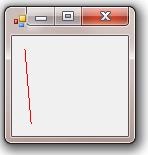
Code:
Public Class Form1

    Private Sub Form1_Load(ByVal sender As System.Object, ByVal e As System.EventArgs) Handles MyBase.Load
        Me.SetClientSizeCore(100, 100)
    End Sub

    Private Sub Form1_Paint(ByVal sender As Object, ByVal e As System.Windows.Forms.PaintEventArgs) Handles Me.Paint
        e.Graphics.ScaleTransform(0.25, 0.25)
        e.Graphics.DrawLine(Pens.Red, 50, 50, 75, 350)
    End Sub

End Class
- Coding Examples:
- Features:
- Online Games:
- Compiled Games:
-
May 7th, 2013, 09:34 AM
#3
Re: Scale Graphics to Image or create custom co-ordinates?
or if you want the y axis to start at 0 in the bottom left corner:
Code:
Public Class Form1

    Private Sub Form1_Load(ByVal sender As System.Object, ByVal e As System.EventArgs) Handles MyBase.Load
        Me.SetClientSizeCore(100, 100)
    End Sub

    Private Sub Form1_Paint(ByVal sender As Object, ByVal e As System.Windows.Forms.PaintEventArgs) Handles Me.Paint
        e.Graphics.TranslateTransform(0, 100)
        e.Graphics.ScaleTransform(0.25, -0.25)
        e.Graphics.DrawLine(Pens.Red, 50, 50, 75, 350)
    End Sub

End Class
- Coding Examples:
- Features:
- Online Games:
- Compiled Games:
-
May 8th, 2013, 08:23 AM
#4
Thread Starter
Addicted Member
Re: Scale Graphics to Image or create custom co-ordinates?
 Originally Posted by .paul.

you can use the graphics object's scaletransform method:
Code:
Public Class Form1

    Private Sub Form1_Load(ByVal sender As System.Object, ByVal e As System.EventArgs) Handles MyBase.Load
        Me.SetClientSizeCore(100, 100)
    End Sub

    Private Sub Form1_Paint(ByVal sender As Object, ByVal e As System.Windows.Forms.PaintEventArgs) Handles Me.Paint
        e.Graphics.ScaleTransform(0.25, 0.25)
        e.Graphics.DrawLine(Pens.Red, 50, 50, 75, 350)
    End Sub

End Class
Originally Posted by .paul.
or if you want the y axis to start at 0 in the bottom left corner:
Code:
Public Class Form1

    Private Sub Form1_Load(ByVal sender As System.Object, ByVal e As System.EventArgs) Handles MyBase.Load
        Me.SetClientSizeCore(100, 100)
    End Sub

    Private Sub Form1_Paint(ByVal sender As Object, ByVal e As System.Windows.Forms.PaintEventArgs) Handles Me.Paint
        e.Graphics.TranslateTransform(0, 100)
        e.Graphics.ScaleTransform(0.25, -0.25)
        e.Graphics.DrawLine(Pens.Red, 50, 50, 75, 350)
    End Sub

End Class
Thank You and Thank You
Exactly what I Was looking for
EDIT: This is completely throwing of my graphic paths though :\
Last edited by Crzyrio; May 8th, 2013 at 11:24 AM.
 Posting Permissions
- You may not post new threads
- You may not post replies
- You may not post attachments
- You may not edit your posts
-
Forum Rules
|
Click Here to Expand Forum to Full Width
|



 Reply With Quote

