The VB6 version here is out of date and several versions behind the twinBASIC version.
It's recommended that you use that version; you can compile to an ocx for use in VB6. ucShellBrowse v12.2 (32bit/64bit)
About
ucShellBrowse is a highly customizable UserControl meant to view the file system. It can be configured, very easily with the standard properties window, as simple as the old VB DirList/FileListBox, or up to all the major features of a full Explorer window, and everything in between.
This is basically having an updated, prettier version of VB's DirList/FileListBox, with further options that allow it to have the power of an actual Explorer window-- but doing it with a ComboBoxEx and ListView allow for customizations and features not possible if you were to simply host an instance of Explorer itself instead. It integrates many of the techniques my small sample projects have shown over the past few years.
Probably the most interesting thing you'll find is the deep dive into the Property System that was involved in recreating Explorer's Details Pane. There's the official documentation of course, but I've never seen any actual code in any language, let alone VB, that takes things all the way down to figuring out which properties should be in the detail bar set, what type of properties they are, listing ranges or combolists full of specialized items like the dozens of different 'Flash Mode' options on a photo, and actually editing and writing it all back on top of reading.
Key Features
Explorer-style Details Pane that shows all the same fully formatted properties. Editing properties is supported, including pop-up DateTime and ComboBox controls where needed.
Supports both dragging out and receiving dropped files, complete with the file icons you see in Explorer. Drops go through Explorer, meaning 3rd party shell extensions like WinRAR are supported.
Dynamic Drag-Drop: Drop on a folder or zip file within the current directory.
Keeps up with changes to the current directory by watching SHChangeNotify
Full Unicode support
Icons, display names, and properties are identical to what a user sees in Explorer. Includes overlay icons for things like shares or links; supports custom ones like used by DropBox or Github.
Full navigation tree from the desktop-- virtual objects that are part of the file system, such as Computer or Libraries, are able to be used normally, and the selections real file system path is resolved and returned.
In addition to the above, attached devices like phones, cameras, etc, can be navigated and used just like Explorer.
Support for several different view modes: XL Icon, Large icon, Medium Icon, Small Icon, List, Details, Tiles, Contents, and Thumbnails.
All column headers found in Explorer are available to be added/removed/sorted by/grouped by, directly interfacing with the Windows Property System and each files Property Store.
Default column headers are loaded for each folder from Explorer; so when you browse to your Music library you get Artist, Album, Title, and Track as the columns (this behavior can be disabled)
Thumbnail View uses the code from my ThumbsEx project, which goes beyond what Explorer can do by using GDI+ to center and frame images smaller than the thumbnail size. The thumbnail size can be set to any value.
Optional setting to enable extended thumbnails, like video files showing the first frame.
Images and all types with a registered preview handler can be previewed in an optional preview pane.
'Group by' is fully implemented; can group for extended properties
Right click brings up the standard shell context menu
Sort is supported for all columns and uses the same API that is used by Explorer, so order is identical
A filter can be applied to only show files matching a certain type (PathMatchSpecW); an option specifies whether it's single-select or multi-select.
Supports rename-in-place with ListView LabelEdit, with blocks and warning popups to prevent disallowed characters. Renames are carried out through Explorer via IFileOperation.
Rename, and other functionality, is still supported even if file name extensions are hidden (the ListView uses the Explorer displayname, so if they're hidden in Explorer they're hidden here)
Supports 'Create new folder' where a new folder is created, with its name the next in sequence if needed, and a label edit to rename is automatically initiated.
Optional status bar that shows the number of files, their total size, and menu item help. A custom message can also be set.
The Back/Up/View control box can be shown or hidden; this combined with option to limit or turn off columns allows for compacting down to the same size as the original VB file browsing controls. ListView icons can even be hidden.
There's substantial interaction with the host form, informing your program of selection change, clicks, double clicks/enter press, directory change, renames, and file drops. These events provide both full paths and references to the file(s) IShellItem(Array) interfaces
The startup path can be customized and is remembered. Options to start in the last path, or a completely blank display in no folder. The current path can be manually changed through a .BrowserPath property.
Custom draw is used to show encrypted files in green and compressed files in blue to be consistent with Explorer (this can also be forced on or forced off)
A footer bar can be added to the file list (like in Explorer search results).
Explorer-style tool tips show details about the selected item; the properties shown depend on the file type, loading the same ones as Explorer does.
Search box, with additional options in pop-up, launches a search of the current location and displays the results as a folder.
Opens certain internet locations that Explorer can open. For example, you can set an ftp:// URL as the BrowserPath or Dropdown root, and the ftp site will successfully load.
NEW: Highly portable - There's no BAS files, property pages, or additional classes. You need only add the .ctl and (recommended) manifest enabling Common Controls 6 if not already present, and just for the IDE, a single TLB reference.
There's also fairly extensive debug output to the Immediate window. You can stop it from appearing by changing the option: Private Const dbg_PrintToImmediate As Boolean = True --Change it to False to stop debug printing. This and other code options immediately follows the changelog in ucShellBrowse.ctl.
Requirements
-Windows Vista or newer
-If using this as a .ctl, your project must have a reference to oleexp.tlb v4.61 or higher (released 03 Oct 2019).
(Tested on Windows 7 Ent, Windows 8 Pro, and Windows 10 1709/Fall Creators)
Strongly recommended:
-Common Controls 6.0 manifest (for a tool to make them, see LaVolpe's Manifest Creator). The control does work without this, but some features are missing/degraded. Button icons in the control box won't show up. The View mode (Details, Large Icons, List, etc) can't be changed at runtime. Group mode, tile view, thumbnail view, and footer items are all unavailable. When renaming, the extension can't be excluded by default.
The resource file in the download and used by the demo projects contains a manifest. It also turns on DPI awareness, since this control does its own high DPI support. There's an alternative file for the Demo project without DPIAware turned on, now included in the Zip instead of separate.
Current Version: 11.2. Recent updates:
Project Update: 11.2
-I haven't had a ton of time to work on this between work and so many other projects, but I did want to release the few small feature updates and bug fixes that have been pending.
Project Update: 11.1
-Wanted to fix a few moderate severity bugs before a major refactor to address some issues. A couple minor features added as well.
Project Update: Version 11.0
-Added a few minor features, including enabling the ability to start a selection marquee in the whitespace of a column like in Explorer, and fixed a number of bugs identified by running it more on Windows 10; Microsoft unexpectedly changed the way a few older APIs worked, among other issues.
Project Update: Version 10.0 Revision 3/4
Revision 4: The fix introduced to stop crashing with a Thicker border was incorrectly applied to the ListView as well, and this caused graphical glitches when resizing the control too short as the ListView locked and the Details Pane and/or StatusBar were drawn on top of it.
Revision 3: The minimum control height for FilesOnly/Dir+Files was applied at runtime for other modes, creating a big empty space below the control, potentially on top of other objects on your form.
I swear I could bug test for a month straight 24/7, then still find something I missed a day later
Project Update: Version 10.0 Revision 2
Had one bug still manage to sneak by
If your startup mode is FilesOnly, but SearchBox was True, if you then switched to a mode that shows the Directory bar during runtime, the SearchBox would not show up, even if you toggled it off and on.
Added the new demo from the 10.0 release post to the zip.
Project Update: Version 10.0
This version update has been adapted and finalized from 9.6 R3/9.7 with several more features/fixes.
Every time I went to save 9.6R3/9.7, a new bug popped up. After it happened a bunch of times, I pulled the entire project entirely. Then, I conducted a thorough review of every single Property and Public method in the control, fixing numerous additional bugs in the process.
With that and a few more features, it's time for a Major Version bump. 10.0 is the most tested version of ucShellBrowse ever.
See the log below for a full list of new features and the extensive bug fix list.
------------
Code:
'New in v11.2 (Released 18 Jun 2022)
'
'-Added SearchAutoGroup to automatically group search results. The default is to
' group them by folder, but you can change that via the szAutoGroupSearchCat
' User Option.
'
'-In addition to below specific bug identified, added a more robust system of
' ensuring duplicates are not added by receiving duplicate ShellNotify messages.
'
'-SelectedFiles (Let) and FileSetCheck are no longer case sensitive.
'
'-Now use Unicode-aware width calculations in Details Pane.
'
'-(Bug fix) In Computer/This PC, for some Windows versions removing a USB device
'           then plugging it back in could result in duplicate entries.
'           Also improved entry remover to better handle these.
'
'-(Bug fix) SelectedFileSet ignored bDeselectOthers flag.
'
'-(Bug fix) The control improperly reported the Windows version due to Microsoft
'           breaking most version functions to require a manifest specifying 10
'           compatibility or else it deliberately reports Windows 8. This didn't
'           impact functionality as the only version-restricted features were
'           Vista+ to run at all, and Windows 8+ for some Bookmarks folders.
'
'-(Bug fix) Since version 9.4, pressing enter in the Search Box accidentally
'           had the code to use the legacy search enabled. That would be conducted
'           first, then the new search would be conducted. This doubled (at least)
'           the search time and created a duplicate folder.
'
'-(Demo)    The Demo manifest, with the preferred settings, has been updated to
'           include compatibility flags, trust info, and newer dpi awareness.
'
'
'New in v11.1 (Released 02 Feb 2022)
'
'-Provided some advanced item data access. zz_ExportSelectedItemFullData and
' zz_ExportItemFullDataByPos export the full internal item data structure.
' How to use these:
'   Step 1: Copy type definitions for UCSBFile, UCSBF_ColLink, and ColumnCache
'           to the calling form/module.
'   Step 2: Declare a UCSBFile variable, and 3 Long's to be passed as arguments
'           for the function: One to receive the memory pointer, and array
'           bounds for the LinkCols and ExtColData arrays in UCSBFile.
'   Step 3: Redim UCSBFile.LinkCols(nLinkCol) and UCSBFile.ExtColData(nExtColData)
'   Step 4: CopyMemory to UCSBFile from ByVal pData (only if function returns >0!)
'   Step 5: You *must* zero out the structure with ZeroMemory before the procedure
'           exits, otherwise it will free the strings and objects, likely causing
'           a crash when the control tries to access them again.
'  Note: As Step 5 might suggest, you must treat the structure as read-only.
'        Attempting to change values could result in instability or crashing.
'        This access is not meant for casual use; unless you really know the ins
'        and outs of passing structures like this you're better off just adding
'        an export for the fields you need.
'
'-Also added InvokeKeyPress to invoke a key press on the ListView by code. Has
' options for Shift/Control/Alt and whether to raise the ListKeyDown event.
'
'-CustomColor event now includes dwState argument that passes the CDIS_* values
' in NMLVCUSTOMDRAW.iStateId.
' ***EVENT PROTOTYPES ON YOUR FORMS MUST BE UPDATED!***
'
'-Set the ListView LabelEdit edit box length limit to MAX_PATH, to avoid an error
' when attempting rename.
'
'-(Bug fix) In high performance mode, showing hidden would also show superhidden
'           as the FILE_ATTRIBUTE_SYSTEM attribute wasn't checked.
'
'-(Bug fix) SelectedFile(Let) and SetSelectedFile selected the wrong file.
'
'-(Bug fix) If FileExtensions was set to AlwaysShow, drive names in This PC would
'           not be displayed at all, and some virtual items displayed GUIDs.
'
'-(Bug fix) When switching into some view modes without ComCtl6, an "Invalid
'           Window Handle" error would be displayed.
'
'
'
'New in v11.0 (Released 25 Jan 2022)
'
'-Added option ExplorerStyleSelection. Makes the ListView work like Explorer; if
' in Details View with Multiselect enabled, you can start a marquee to select
' multiple files by dragging in the whitespace of the Name column, rather than
' need to go off to the side. Enabled by default.
' Note: Does not work in Windows Vista.
' Note: This is an undocumented ListView feature. As such, it may be dropped from
'       future versions of Windows. However, it's confirmed to be working in
'       Windows 10, and it will simply stay with the old selection style if the
'       call fails, it will not break the control.
'
'-Added ClearSelection method to deselect all items.
'
'-Added new public SelectedFileSet sub with more options; allows select/deselect,
' separate option for focus, option to deselect all others, and ensure visible.
' SelectedFile (Let) wasn't changed since optional arguments aren't allowed and
' adding non-optional ones would break people's existing code.
'
'-SelectedFile (Let) is no longer case sensitive, since filenames are not.
'
'-New SetSelectedItemsEx function that provides a far more robust way of selecting
' files. Supports wildcards for selecting many, limiting to files or folders,
' setting a match limit, and more.
'
'
'-(Bug fix) High performance mode was broken on Windows 10.
'
'-(Bug fix) On some special editions of Windows 10, including LTSC, special folders
'           are not included, causing the Bookmarks menu to not show due to a bug
'           in handling errors generating that submenu.
'
'-(Bug fix) Some FILETIME and RECT types weren't explicitly defined, leading to
'           naming conflict errors in certain scenarios.
'
'-(Bug fix) On some versions of Windows 10, Special folders in This PC were grouped
'           with the drives.
'
'-(Bug fix) On Windows 10, some Security Zone icons failed to load.
'
'-(Bug fix) Keyboard focus never went to ucTreeView when on a form w/ ucShellBrowse.
'
'-(Bug fix) The arrow keys wouldn't work on the first click of the ListView.


'New in v10.0 R4 (Released 29 Apr 2021)
'
'-Updated GetPropertyDisplayString snd GetPropertyKeyDisplayString to handle arrays
' in the manual fallback handler for properties without an IPropertyDescription.
'
'-(Bug fix) When the StatusBar and/or DetailsPane was enabled, resizing the control
'           below a certain point caused the ListView to stop resizing, forcing the
'           bar and pane onto it, causing graphical glitches. This was related to
'           the fix put in place to stop crashes from resizing a thicker border too
'           low; that code fired when it shouldn't.
'New in v10.0 R3 (Released 29 Apr 2021)
'
'-(Bug fix) The minimum height for the control was being enforced, but was not
'           appropriate for DirOnly/DriveOnly/DirOnlyCtl, which left a big chunk
'           of blank space under the control that might cover up other objects on
'           your form.
'
'New in v10.0 R2 (Released 28 Apr 2021)
'
'-(Bug fix) If the Search Box was enabled, but the mode set to FilesOnly, then you
'           changed to Dir+Files or other mode with the top bar, the Search Box
'           did not become visible along with everything else.
If there's another feature you'd like to see don't hesitate to suggest it
Works with the ShellTree control
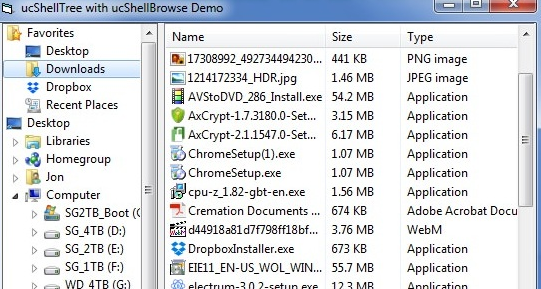
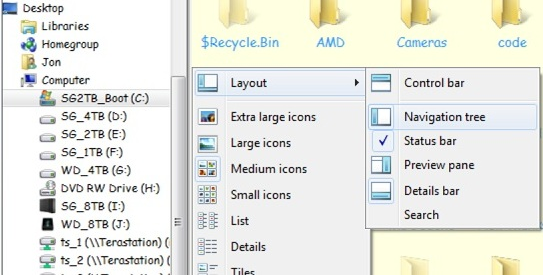
If you'd rather use a TreeView to navigate (or even choose files), you might be interested in ucShellTree, my new Shell Tree Control. Like this project, it implements nearly all of the functionality from Explorer and some additional ones.
It works seamlessly with this project-- see the ucShellBrowse DemoEx sample (it also works stand-alone). As shown on the right, there's even an option to signal showing/hiding it from the ShellBrowse Layout menu.
NEW! I'm also now distributing ucShellBrowse and ucShellTree together as a compiled OCX, complete with SxS resources to create registration-free distributions.
twinBASIC UserControl support has come a long way in recent weeks, and there's now a beta release of this control for tB, compatible with both 32bit and 64bit apps. Makes use of my tbShellLib project to replace oleexp.tlb.



 [VB6] ucShellBrowse: A modern replacement for Drive/FileList w/ extensive features



 Reply With Quote
