|

-
Mar 17th, 2009, 02:28 AM
#1
 Quick FAQ -The New vBulletin Features Quick FAQ -The New vBulletin Features
First I'd like to Thanks Joe (jpnyc) for performing the upgrade smoothly and quickly! 
There are many new features that you may want to become familiar with as going from 3.5.7 to 3.8.1 is a big jump.
- Thread Prefixes:
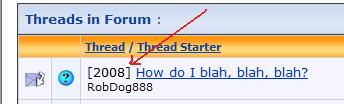
Now in 3.7.x and above we have Thread Prefixes. They are prefixes to a threads title/subject. We used to have to edit thread titles to include , for ex, a version of .NET. Now no more. When posting a thread you only need to select from the dropdown that is to the left of the Title (see fig. 1). Also, when you have posted your thread the thread title/subject will be prepended with your choosen prefix (see fig. 2).
Fig. 1
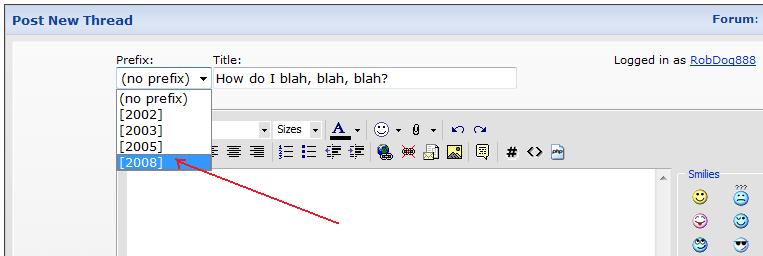
Fig. 2
- Multi-Quote:
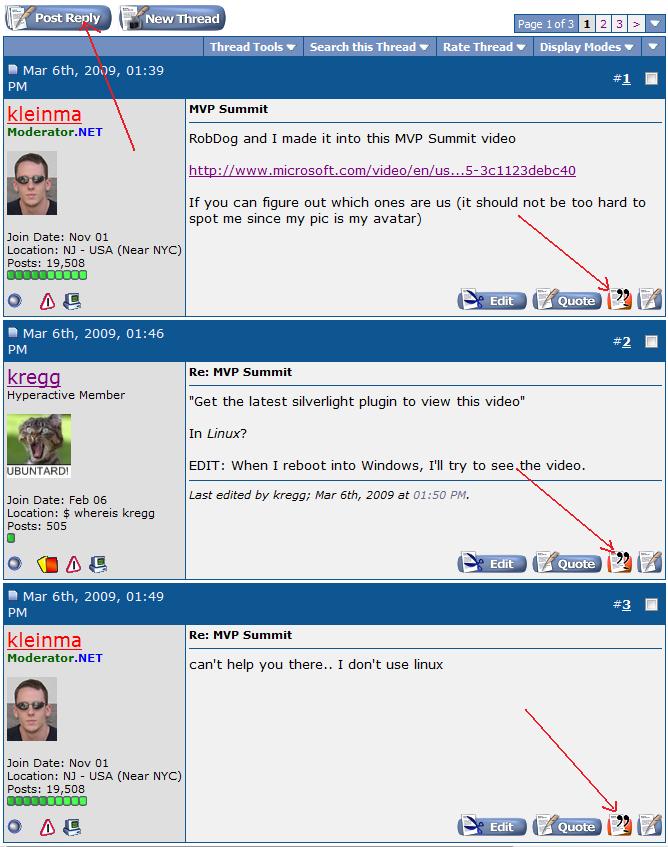
You can now make multiple quote selections in a single motion  Simply click on the "+" button on a post you wish to quote (see fig. 2a). They will change from blue to red-ish orange and the "-" button will show when selected. To deselect, click again and the color will revert back and show the "+" button again Then do the same for any other posts you wish to include in your single post. You can quote up to 5 posts by default unless the site has changed it from the default. When you are done selecting the posts to quote click the "Post Reply" button at either the top let or bottom let of the page. If you use the Quick Reply "Go Advanced" it wil not populate the message textbox with any quotted text/posts. then once the Advanced Reply page is up, feel free to add your comments to reply to each quote or ??? Simply click on the "+" button on a post you wish to quote (see fig. 2a). They will change from blue to red-ish orange and the "-" button will show when selected. To deselect, click again and the color will revert back and show the "+" button again Then do the same for any other posts you wish to include in your single post. You can quote up to 5 posts by default unless the site has changed it from the default. When you are done selecting the posts to quote click the "Post Reply" button at either the top let or bottom let of the page. If you use the Quick Reply "Go Advanced" it wil not populate the message textbox with any quotted text/posts. then once the Advanced Reply page is up, feel free to add your comments to reply to each quote or ???
Fig. 2a
- Tags
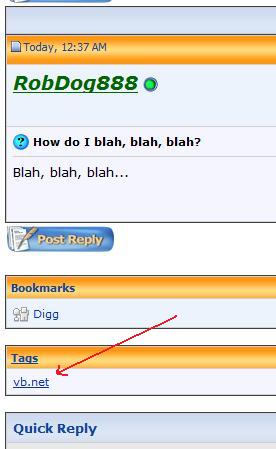
We now have Thread Tags. You can add/edit/delete (depending upon permissions) tags to help identify threads when searching. Below your message text when composing a new thread/post or in advanced edit mode will be the textbox for Tags (see fig. 3). Tags also show at the post view level at the bottom of the posts for each page (see fig. 4).
Fig. 3
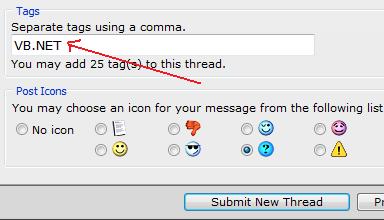
Fig. 4
- Social Bookmarking:
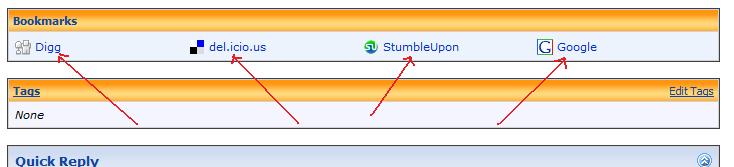
Social bookmarking (if enabled) is a way for users to store and organise bookmarks of web pages. In a social bookmarking system, a user will save a link to web pages that they want to remember and/or share. There are a number of third party services offering social bookmarking facilities, vBulletin provides the ability to link directly to an add page and pre-populate the data (see Fig. 5).
Fig. 5
- Contacts and Friends:
The old Buddy list is now the Contacts list. You can do all the same things as the Buddy list but now you can also specify Friends and make Friend Requests. You can view your friends in the User Control Panel (see fig. 6). When upgrading from our legacy version to this 3.8.1 version all your Buddy Lists were converted over to Contacts.
There are 3 types/status of Contacts/Friends:
1. (see Fig 6 #1) Contact: not a friend nor friendship requested but just a contact.
2. (see Fig 6 #2) Friendship requested on a Contact.
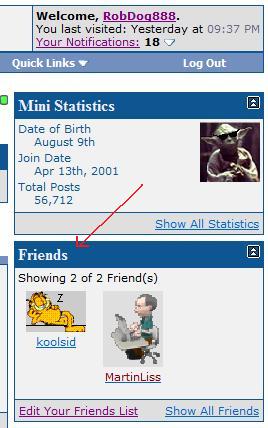
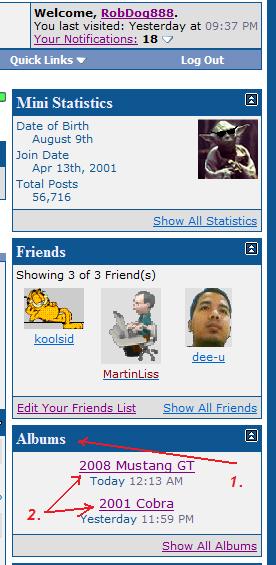
3. (see Fig 6 #3) Friend (Friendship request acccepted by the requestee). Friends will also show a short preview of them on your User Profile page in the Friends block (Fig. 7).
Fig. 6
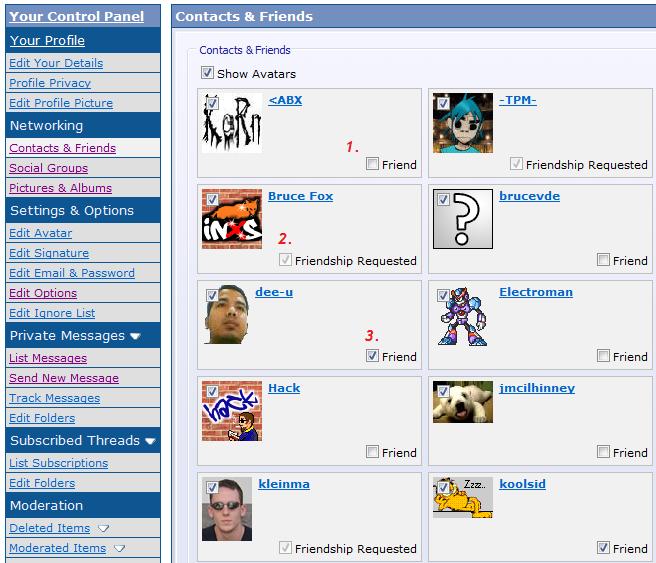
Fig. 7
- Albums
vBulletin now has member photo albums. Accessible via your User Control Panel and shown on your User Profile page in the Album block (see fig. 8). You can create an album, designate it as Private or Public etc and upload photos withing the file size and dimensions specified. Visitors can view your albums photos and post comments for each as they desire. You will receive a Notification of a new photo comment too. Depending upon forum permissions you may create at least 2 albums which wil be listed like shown in fig. 8 #1 and #2 each of which is separate albums.
Fig. 8
- Notifications
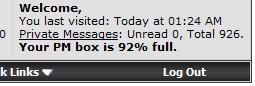
Notiications notify the member that they have one or more types of notices. If you click on the white down arrow the notifications will drop down as shown in fig. 9 Listed are all the types and they are quite self explainatory. If your user settings are set to display a Popup messagebox then that will still happen as it used to but you will still have notifications dropdown available to you. Also, as your PM boxes get close to capicity they will display a percentage of how full you are. It starts to display at 90% (see fig. 10).
Fig. 9
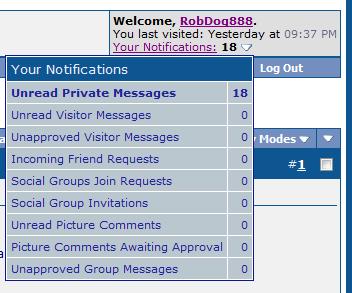
Fig. 10
- Social Groups
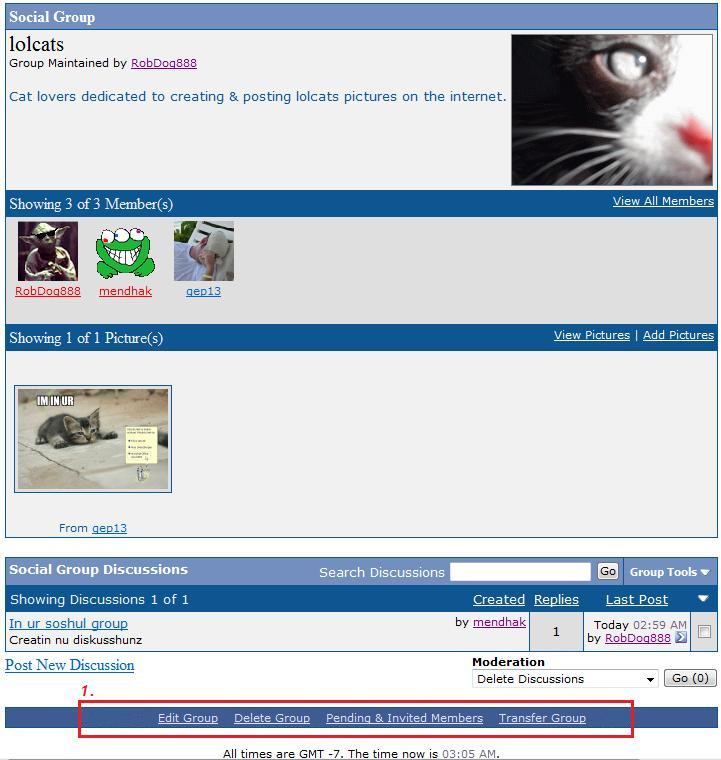
Social Groups are groups that you can create and/or join to discuss topics of like minded individules. You can access them via the NavBar dropdown "Community" and select "Social Groups" (see fig. 11). Once you are viewing the list of Social Groups (see fig. 12) you can make a join request (see fig. 13) (if its a public group) and start being "social". If you are the creator of a group you should see extra links at the bottom where you can manage your group.
Fig. 11
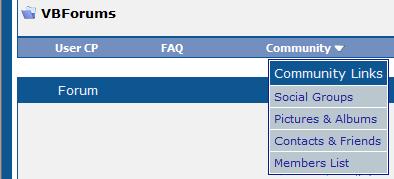
Fig. 12
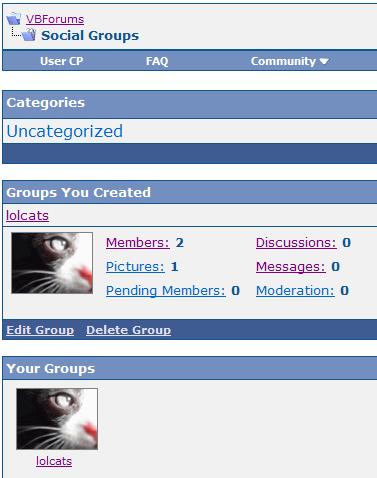
Fig. 13
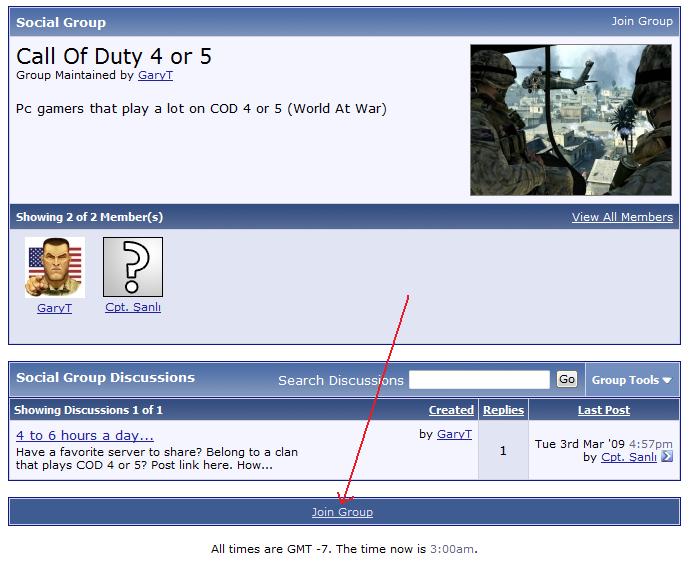
Fig. 14
- Infractions & Warnings
The User Infraction system is designed to automate the management of misbehaving users. Infractions carry a point total that is awarded to users. When a user reaches pre-determined point levels, the user is given infraction groups. Infraction groups are set up to restrict the permissions of users. The system can also be configured to institute automatic bans based on points or number of infractions received.
Each infraction level has an expiration time. When the infraction expires, the associated points are removed from the user's point total and the user's infraction groups are recalculated. If you receive an infraction you will be notified by Private Message.
More to come but this should get you guys going for now.
Ps, Martin I finished it way before morning but I cant get it on to your desk 
Last edited by RobDog888; Mar 17th, 2009 at 05:30 AM.
VB/Office Guru™ (AKA: Gangsta Yoda™  ®) ®)
I dont answer coding questions via PM. Please post a thread in the appropriate forum. 
Microsoft MVP 2006-2011
Office Development FAQ (C#, VB.NET, VB 6, VBA)
Senior Jedi Software Engineer MCP (VB 6 & .NET), BSEE, CET
If a post has helped you then Please Rate it!
• Reps & Rating Posts • VS.NET on Vista • Multiple .NET Framework Versions • Office Primary Interop Assemblies • VB/Office Guru™ Word SpellChecker™.NET • VB/Office Guru™ Word SpellChecker™ VB6 • VB.NET Attributes Ex. • Outlook Global Address List • API Viewer utility • .NET API Viewer Utility •
System: Intel i7 6850K, Geforce GTX1060, Samsung M.2 1 TB & SATA 500 GB, 32 GBs DDR4 3300 Quad Channel RAM, 2 Viewsonic 24" LCDs, Windows 10, Office 2016, VS 2019, VB6 SP6
 Posting Permissions
- You may not post new threads
- You may not post replies
- You may not post attachments
- You may not edit your posts
-
Forum Rules
|
Click Here to Expand Forum to Full Width
|



