|

-
Apr 13th, 2019, 07:10 AM
#1
 [RESOLVED] System.Windows.Media... AreaGradient ? [RESOLVED] System.Windows.Media... AreaGradient ?
Hey all,
I'm working in WPF, but since this question is all about the code behind it makes sense to post it here.
I need to make area gradient using the System.Windows.Media namespace. Essential it would be a LinearGradient in both the horizontal and vertical directions simultaneously.
I have this code that produces the image below...
VB.Net Code:
Dim br As New LinearGradientBrush()
 Dim startP As New Point(0, 0.5)
Dim endP As New Point(1, 0.5)
br.StartPoint = startP
br.EndPoint = endP
 br.GradientStops.Add(New GradientStop(Colors.Transparent, 0.0))
br.GradientStops.Add(New GradientStop(Colors.Red, 0.2))
br.GradientStops.Add(New GradientStop(Colors.Red, 0.8))
br.GradientStops.Add(New GradientStop(Colors.Transparent, 1))
 _rectangle.Fill = br

I don't know how to draw the gradient once, then rotate it and redraw it again without covering the first.
If I were in the System.Drawing namespace I would create 4 triangles paths in the rectangle each rotated by 90 degrees and fill them with a gradient to produce the results. Being new to the Media namespace however, I don't see how to create a path like this.
Any one know how to create a area gradient like what I describe?
(VS2019 btw)
Process control doesn't give you good quality, it gives you consistent quality.
Good quality comes from consistently doing the right things.
Vague general questions have vague general answers. A $100 donation is required for me to help you if you PM me asking for help. Instructions for donating to one of our local charities will be provided.
______________________________ Last edited by kebo : Now. Reason: superfluous typo's
-
Apr 13th, 2019, 10:33 AM
#2
Re: System.Windows.Media... AreaGradient ?
Is this the kind of thing you want?
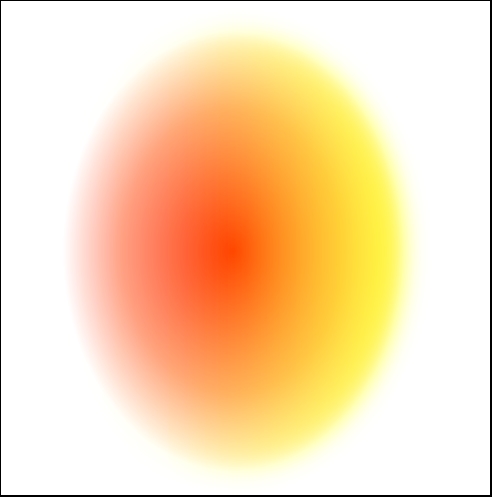
I made the above in the WPF designer by superimposing two Ellipse objects on a canvas. The lower one has a radial brush fill in red-transparent, and the upper one has a linear brush fill from yellow to transparent. The upper one also has a touch of blur effect. To give you some idea of the values used, the resulting XAML is as follows:
Code:
    <Canvas HorizontalAlignment="Left" Height="580" Margin="62,362,0,0" VerticalAlignment="Top" Width="604">
         <Ellipse x:Name="Ellipse1" HorizontalAlignment="Left" Height="524" Margin="106,40,0,0" Stroke="Black" VerticalAlignment="Top" Width="406" StrokeThickness="0">
            <Ellipse.Fill>
            <RadialGradientBrush>
               <GradientStop Color="Red"/>
               <GradientStop Color="White" Offset="1"/>
                  <GradientStop Color="#FFFF9480" Offset="0.647"/>
               </RadialGradientBrush>
         </Ellipse.Fill>
      </Ellipse>
      <Ellipse x:Name="Ellipse2" HorizontalAlignment="Left" Height="524" Margin="106,40,0,0" Stroke="Black" VerticalAlignment="Top" Width="406" StrokeThickness="0">
            <Ellipse.Effect>
               <BlurEffect Radius="44"/>
            </Ellipse.Effect>
            <Ellipse.Fill>
            <LinearGradientBrush EndPoint="0.5,1" MappingMode="RelativeToBoundingBox" StartPoint="0.5,0">
               <LinearGradientBrush.RelativeTransform>
                  <TransformGroup>
                     <ScaleTransform CenterY="0.5" CenterX="0.5"/>
                     <RotateTransform Angle="90" CenterY="0.5" CenterX="0.5"/
                  </TransformGroup>
               </LinearGradientBrush.RelativeTransform>
               <GradientStop Color="#BFFFFF00"/>
               <GradientStop Offset="1"/>
                  <GradientStop Color="#3FFFFF00" Offset="0.532"/>
               </LinearGradientBrush>
         </Ellipse.Fill>
      </Ellipse>
    </Canvas>
I hope you can see how to translate this into VB.Net. Then you could save the result as an Image which you can then use to define an ImageBrush, if that's what you need.
Unfortunately WPF doesn't provide a bidirectional gradient brush. In theory it should be possible to create one, but I expect that it would take a lot of work.
EDIT: I'm not sure what you mean by the triangles paths. Maybe you could post an example made with System.Drawing.
BB
Last edited by boops boops; Apr 13th, 2019 at 10:47 AM.
-
Apr 13th, 2019, 11:37 AM
#3
Re: System.Windows.Media... AreaGradient ?
This is what I am looking for...
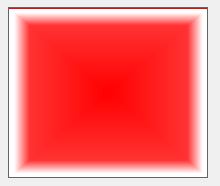
And this is the code (c#) that created it using the System.Drawing namespaces...
Handle the paint event of the control (in this a case a panel)
Code:
        private void Panel1_Paint(object sender, PaintEventArgs e)
        {
            drawTriangleGradient(e.Graphics, 0, this.panel1.ClientSize);
            drawTriangleGradient(e.Graphics, 90, this.panel1.ClientSize);
            drawTriangleGradient(e.Graphics, 180, this.panel1.ClientSize);
            drawTriangleGradient(e.Graphics, 270, this.panel1.ClientSize);
        }
And here is the worker code to draw a single triangle with a specific rotation...
Code:
        private void drawTriangleGradient(Graphics gr, int rotation, Size size)
        {

            int w = size.Width;
            int h = size.Height;
            int cx =(int)( w / 2.0);
            int cy = (int)(h / 2.0);

            //create 3 point for a graphics path
            Point p1 = new Point(cx, cy);
            Point p2= new Point();
            Point p3 = new Point();

            //the linear brush will start and the center
            //get the brushes end point based on the rotation
            Point grEndPoint = new Point();

            //set the points based on the rotation
            switch (rotation)
            {
                case 0:
                    {
                         p2 = new Point(0, 0);
                         p3 = new Point(w, 0);
                        grEndPoint = new Point(cx, 0);
                        break;
                    }
                case 90:
                    {
                        p2 = new Point(0, h);
                        p3 = new Point(0, 0);
                        grEndPoint = new Point(0, cy);
                        break;
                    }

                case 180:
                    {
                        p2 = new Point(w, h);
                        p3 = new Point(0, h);
                        grEndPoint = new Point(cx, h);
                        break;
                    }
                case 270:
                    {
                        p2 = new Point(w, 0);
                        p3 = new Point(w, h);
                        grEndPoint = new Point(w, cy);
                        break;
                    }
            }

            //set the blend factors and positions
            float[] factors = { 0.0f, 0.2f, 1.0f,1.0f };
            float[] positions = { 0.0f, 0.8f, 0.95f, 1.0f };
            Blend blend = new Blend();
            blend.Factors = factors;
            blend.Positions = positions;

            //create the brush and attach the blend
            LinearGradientBrush br = new LinearGradientBrush(new Point(cx, cy),grEndPoint, Color.Red, Color.White);
            br.Blend = blend;

            //create the path and add the points
            GraphicsPath gPath = new GraphicsPath();
            gPath.AddPolygon(new PointF[] { p1, p2, p3 });

            //draw it
            gr.FillPath(br, gPath);

        }
My hope was that there was a direct way in the media namespace to do this. Worst case I'll draw it in the Drawing namespace and use an ImageBrush as you mention.
Last edited by kebo; Apr 13th, 2019 at 11:42 AM.
Process control doesn't give you good quality, it gives you consistent quality.
Good quality comes from consistently doing the right things.
Vague general questions have vague general answers. A $100 donation is required for me to help you if you PM me asking for help. Instructions for donating to one of our local charities will be provided.
______________________________ Last edited by kebo : Now. Reason: superfluous typo's
-
Apr 13th, 2019, 06:24 PM
#4
Re: System.Windows.Media... AreaGradient ?
You could make something a bit like that in WPF just by blurring a rectangle.
Code:
     Dim r As New Rectangle With {.Width = 250, .Height = 250, .Fill = Brushes.Red}
     r.Effect = New Effects.BlurEffect With {.Radius = 25, .RenderingBias = Effects.RenderingBias.Quality}
     Dim vb As New VisualBrush With {.Stretch = Stretch.None, .Visual = r}
    'use a Canvas or other control to display the resulting brush:
    Canvas1.Background = vb
result:
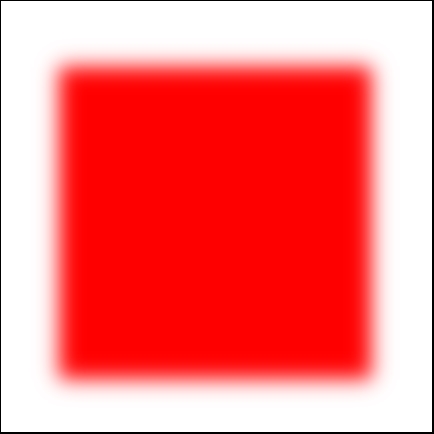
Admittedly, this lacks the pointy corners of your post #3 image. If those features are wanted, you could piece the triangles together using a DrawingContext, which is the WPF equivalent of a System.Drawing.Graphics object, as you did in GDI+. I don't have time now to work out the actual drawing code required now, but this should give you a rough idea of how to create the brush:
Code:
    Dim dv As New DrawingVisual
      Dim dc As DrawingContext = dv.RenderOpen
      'insert drawing instructions here
      dc.Close()
    Dim vb As New VisualBrush With {.Stretch = Stretch.None, .Visual = dv}
BB
Last edited by boops boops; Apr 13th, 2019 at 06:37 PM.
-
Apr 13th, 2019, 07:14 PM
#5
Re: System.Windows.Media... AreaGradient ?
How about an old fashioned fade? The example is vb.net.

Code:
Public Class Form4
    Private Sub Form4_Load(sender As Object, e As EventArgs) Handles Me.Load
        Text = "Draw Fade"
        BackColor = Color.WhiteSmoke
    End Sub

    Private Sub Form4_Paint(sender As Object, e As PaintEventArgs) Handles Me.Paint

        Dim x As Integer = 20   'location
        Dim y As Integer = 20
        Dim w As Integer = 200  'size
        Dim r As Integer        'fade width

        For r = 0 To 25
            Using p As New Pen(Color.FromArgb(10 * r, Color.Maroon))
                e.Graphics.DrawRectangle(p, x + r, y + r, w - (2 * r), w - (2 * r))
            End Using
        Next

        e.Graphics.FillRectangle(Brushes.Maroon, x + r, y + r, 1 + w - (2 * r), 1 + w - (2 * r))

    End Sub

End Class
-
Apr 14th, 2019, 07:11 AM
#6
Re: System.Windows.Media... AreaGradient ?
 Originally Posted by tommytwotrain

How about an old fashioned fade? The example is vb.net.
Although the code is simpler, I'm not sure about the efficiency of it. Drawing 25 rectangle plus a fill has got to take longer than drawing 4 triangles.
Process control doesn't give you good quality, it gives you consistent quality.
Good quality comes from consistently doing the right things.
Vague general questions have vague general answers. A $100 donation is required for me to help you if you PM me asking for help. Instructions for donating to one of our local charities will be provided.
______________________________ Last edited by kebo : Now. Reason: superfluous typo's
-
Apr 14th, 2019, 07:13 AM
#7
Re: System.Windows.Media... AreaGradient ?
Originally Posted by boops boops
you could piece the triangles together using a DrawingContext, which is the WPF equivalent of a System.Drawing.Graphics object, as you did in GDI+
Thanks BB. I'll look into it.
Process control doesn't give you good quality, it gives you consistent quality.
Good quality comes from consistently doing the right things.
Vague general questions have vague general answers. A $100 donation is required for me to help you if you PM me asking for help. Instructions for donating to one of our local charities will be provided.
______________________________ Last edited by kebo : Now. Reason: superfluous typo's
-
Apr 14th, 2019, 08:24 AM
#8
Re: System.Windows.Media... AreaGradient ?
Originally Posted by kebo
Although the code is simpler, I'm not sure about the efficiency of it. Drawing 25 rectangle plus a fill has got to take longer than drawing 4 triangles.
I doubt that there would be any measurable difference in efficiency. Drawing and filling solid colour rectangles could in fact be quicker than gradient-filling triangles, but in either case the processing time to build the image would be trivial compared to rendering it to the screen.
I suppose using a LinearGradientBrush would be more consistent with WPF and its resolution-independent rendering. Among other things you won't have to guess how many rectangles to draw.
BB
 Posting Permissions
- You may not post new threads
- You may not post replies
- You may not post attachments
- You may not edit your posts
-
Forum Rules
|
Click Here to Expand Forum to Full Width
|



 Reply With Quote