|

-
Feb 5th, 2019, 03:56 AM
#1
Thread Starter
New Member

 How to change the element of 2D matrix and resize the matrix? How to change the element of 2D matrix and resize the matrix?
I have the following code, I want to do pixel by pixel comparison between the big and small image
My questions are
1. How I can write to the coordinate? coordinates{0, 0} = BigX + Math.Ceiling(img2.Size.Width / 2) does not seem right
2. How I can change the size of the coordinate from one point to XX points? XX will be input to the function as a new ByVal
Code:
    Private Function ImageCompare(ByVal img1 As Bitmap, ByVal img2 As Bitmap)
        Dim coordinates(,) As Integer = {{-1, -1}}
        For BigX = 1 To img1.Size.Width - img2.Size.Width + 1
            For BigY = 1 To img1.Size.Height - img2.Size.Height + 1
                For SmallX = 1 To img2.Size.Width
                    For SmallY = 1 To img2.Size.Height
                        If img1.GetPixel(BigX, BigY) <> img2.GetPixel(SmallX, SmallY) Then
                            GoTo Exit_of_this_location
                        End If
                    Next
                Next
                coordinates{0, 0} = BigX + Math.Ceiling(img2.Size.Width / 2)
                coordinates[{0},{1}] = BigY + Math.Ceiling(img2.Size.Height / 2)
Exit_of_this_location:
            Next
        Next
        Return coordinates
    End Function
-
Feb 5th, 2019, 05:20 AM
#2
Re: How to change the element of 2D matrix and resize the matrix?
What is it you want to do overall exactly? Find if one image has any one color pixel same as any color in second image? If not can you show a picture of what you want to accomplish?
Are the images the same size?
1. How I can write to the coordinate? coordinates{0, 0} = BigX + Math.Ceiling(img2.Size.Width / 2) does not seem right
What do you want to do draw a pixel at the center of the image?
2. How I can change the size of the coordinate from one point to XX points? XX will be input to the function as a new ByVal
What do you want to do enlarge the overall image?
-
Feb 5th, 2019, 10:29 AM
#3
Thread Starter
New Member
Re: How to change the element of 2D matrix and resize the matrix?
 Originally Posted by tommytwotrain

What is it you want to do overall exactly? Find if one image has any one color pixel same as any color in second image? If not can you show a picture of what you want to accomplish?
Are the images the same size?
1. How I can write to the coordinate? coordinates{0, 0} = BigX + Math.Ceiling(img2.Size.Width / 2) does not seem right
What do you want to do draw a pixel at the center of the image?<== I want to save the coordinate, I should say 'save' not write
2. How I can change the size of the coordinate from one point to XX points? XX will be input to the function as a new ByVal
What do you want to do enlarge the overall image? <== resize the matrix not the image
What do you want to do draw a pixel at the center of the image?<== I want to save the coordinate, I should say 'save' not write
What do you want to do enlarge the overall image? <== resize the matrix not the image
-
Feb 5th, 2019, 11:18 AM
#4
Re: How to change the element of 2D matrix and resize the matrix?
"What do you want to do draw a pixel at the center of the image?
<== I want to save the coordinate, I should say 'save' not write"
Code:
Dim pt as new Point( x, y)
"What do you want to do enlarge the overall image?
<== resize the matrix not the image "
That does not make sense? What are you calling a matrix? The image bitmap?
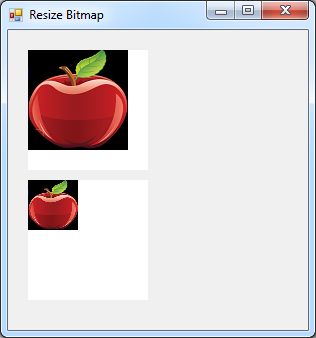
Is this what you mean? The original image shown on top is 100 x 100 pixels and the one on the bottom is resized by 50 percent to 50 x 50 pixels. Same image different bitmap matrix size.
The example makes the controls just cut and paste to an empty form
Code:
Public Class Form1
    'make two pictureboxes the same size
    Private PictureBoxA As New PictureBox With {.Parent = Me, .BackgroundImageLayout = ImageLayout.None,
        .Location = New Point(20, 20), .Size = New Size(120, 120), .BackColor = Color.White}
    Private PictureBoxB As New PictureBox With {.Parent = Me, .BackgroundImageLayout = ImageLayout.None,
        .Location = New Point(20, 150), .Size = New Size(120, 120), .BackColor = Color.White}

    Private Sub Form1_Load(sender As Object, e As EventArgs) Handles MyBase.Load
        Text = "Resize Bitmap"
        ClientSize = New Size(300, 300)

        'imageA is 100 x 100 pixels
        Dim imageA As New Bitmap("c:\bitmaps\apple100.png")

        'show 100x100 image in pictureboxB
        PictureBoxA.BackgroundImage = imageA

        'make new imageB 50 x 50 pixels
        Dim imageB As New Bitmap(50, 50)

        Using g As Graphics = Graphics.FromImage(imageB)
            Dim destRect As New Rectangle(0, 0, 50, 50)
            Dim sourceRect As New Rectangle(0, 0, 100, 100)

            g.DrawImage(imageA, destRect, sourceRect, GraphicsUnit.Pixel)

            'show the new 50x50 image in pictureboxB
            PictureBoxB.BackgroundImage = imageB

        End Using
    End Sub
End Class
-
Feb 5th, 2019, 09:12 PM
#5
Re: How to change the element of 2D matrix and resize the matrix?
PS Do you mean you want to use a graphics scaling matrix to resize the image on the screen?
The graphics ScaleTransform is the same thing maybe easier to use.
-
Feb 6th, 2019, 08:44 AM
#6
Re: How to change the element of 2D matrix and resize the matrix?
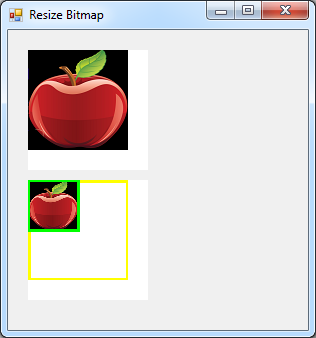
Here is the same example drawn with a matrix scaled by half or 50 percent. Note how matrix and g.transform are the same thing. A new matrix is declared and set equal to the screen transform. Then the matrix is scaled and the grphics set to the scaled matrix.
The result is the lower image is then drawn half size. See the yellow 100 x100 rect before scaling and lime 50 x 50 rect after scaling?
I guess that is what you asked for?
Code:
Public Class Form5
    'make two pictureboxes the same size
    Private PictureBoxA As New PictureBox With {.Parent = Me, .BackgroundImageLayout = ImageLayout.None,
        .Location = New Point(20, 20), .Size = New Size(120, 120), .BackColor = Color.White}
    Private PictureBoxB As New PictureBox With {.Parent = Me, .BackgroundImageLayout = ImageLayout.None,
        .Location = New Point(20, 150), .Size = New Size(120, 120), .BackColor = Color.White}

    Private Sub Form4_Load(sender As Object, e As EventArgs) Handles MyBase.Load
        Text = "Resize Bitmap"
        ClientSize = New Size(300, 300)

        'imageA is 100 x 100 pixels
        Dim imageA As New Bitmap("c:\bitmaps\apple100.png")

        'show 100x100 image in pictureboxB
        PictureBoxA.BackgroundImage = imageA

        'make new imageB 50 x 50 pixels
        Dim imageB As New Bitmap(100, 100)

        Using g As Graphics = Graphics.FromImage(imageB)
            Dim destRect As New Rectangle(0, 0, imageB.Width, imageB.Height)

            'draw a yellow outline before scaling 100 x 100
            g.DrawRectangle(New Pen(Color.Yellow, 5), destRect)

            'scale the image graphics by half or 50 percent
            Dim mx As Drawing2D.Matrix = g.Transform
            mx.Scale(0.5, 0.5)
            g.Transform = mx

            g.DrawImage(imageA, destRect)


            'draw the lime outline after scaling
            g.DrawRectangle(New Pen(Color.Lime, 5), destRect)

            'show the new 50x50 image in pictureboxB
            PictureBoxB.BackgroundImage = imageB

        End Using
    End Sub
End Class
Here is the original 100x100 image to try.

Tags for this Thread
 Posting Permissions
- You may not post new threads
- You may not post replies
- You may not post attachments
- You may not edit your posts
-
Forum Rules
|
Click Here to Expand Forum to Full Width
|



 Reply With Quote
