|

-
Dec 14th, 2017, 10:37 AM
#1
Thread Starter
PowerPoster

 [RESOLVED] How to select a semi-transparent area on the picture with the mouse? [RESOLVED] How to select a semi-transparent area on the picture with the mouse?
I need to select a rectangular area on the picture with the mouse, the area is translucent so that it is different from the non-selected area. In addition, the size of the selected area can be adjusted by dragging the border with the mouse.
Is there any good way to achieve this function? Any advice and suggestions would be greatly appreciated.
-
Dec 14th, 2017, 10:43 AM
#2
Re: How to select a semi-transparent area on the picture with the mouse?
with the API GdiAlphaBlend it is quite easy to do.
create a invisible picturebox with the color you want to use, then use the API to copy what you need (maybe you need to do a bit of copy looping if the area is bigger then the picturebox, but its just math)
then use the picturebox own mouse event to create the "selection-dragging".
-
Dec 14th, 2017, 03:01 PM
#3
Thread Starter
PowerPoster
Re: How to select a semi-transparent area on the picture with the mouse?
Hi baka, thank you for your reply. I know the following ways to achieve the functionality I need:
1. SetLayeredWindowAttributes
2. AlphaBlend
3. GdiAlphaBlend
4. TransparentBlt
5. Pixel-Mixing
6. BitBlt
I wonder if there are any other better ways. In addition, I want to know which method is the easiest or which method is the most efficient.
Also, when using the mouse to change the size of the selected area, is there a very clever way?
Last edited by dreammanor; Dec 14th, 2017 at 03:08 PM.
-
Dec 14th, 2017, 05:04 PM
#4
Re: How to select a semi-transparent area on the picture with the mouse?
just GdiAlphaBlend,
one simple example:
create 2 pictureboxes, one you set to invisible and choose the backcolor you want to use.
the other picturebox, you use the mousemove event and when button is pressed, in that
you clear the picture (.cls) and then use the API:
GdiAlphaBlend Picture1.hDC, 0, 0, x, y, Picture2.hDC, 0, 0, 1, 1, 65536 * Alpha
where Alpha is 0-255
and lastly a refresh.
remember to set scalemode to "pixel" and autoredraw to true.
edit:
instead of ".cls" you could use bitblt to copy a picture/pattern you want to be used under it.
Last edited by baka; Dec 14th, 2017 at 05:12 PM.
-
Dec 14th, 2017, 06:17 PM
#5
Re: How to select a semi-transparent area on the picture with the mouse?
AlphaBlend and GdiAlphaBlend are aliases for the very same function. GdiAlphaBlend is the non-preferred synonym.
-
Dec 14th, 2017, 07:06 PM
#6
Re: How to select a semi-transparent area on the picture with the mouse?
AlphaBlend uses msimg32.dll while GdiAlphaBlend uses gdi32.dll. they are basically the same, but the former can also run in windows 98 if you ever need that. and no, theres no "favorite" here, choose whatever you like.
-
Dec 14th, 2017, 07:15 PM
#7
Re: How to select a semi-transparent area on the picture with the mouse?
FWIW - I've shrinked down (to Demo-Size) a little tool I use here myself, to cut-out "Sub-PNGs" from larger PNG-Images.
Source-Format-wise it supports (besides PNG) also JPG, GIF and BMP.
(when compiled, you can Drop Image-Files from Explorer onto the App-Exe-Icon...)
Destination-Formats can be (popping up a File-Save-Dialogue by clicking the Preview-Form) either PNG or JPG.
The Demo does depend on vbRichClient5 - but uses no other dependencies (also no Controls on your VB-Form).
Open an empty StdExe-Project (and ensure a Project-Reference to vbRichClient5).
Rename the existing Form1 to frmImg - and put the following code into it:
Code:
Option Explicit 'we use the same Form-Prototype for the Selection-Form and the Preview-Form

Private Const ChkSz As Long = 10 'size of a single Checker-Square (also the offset to the real Image-Coords)

Private Srf As cCairoSurface, Sel As cwSelect, WithEvents pnlPic As cWidgetForm

Private Sub Form_Load()
  Set pnlPic = Cairo.WidgetForms.CreateChild(hWnd) 'create a cWidgetForm-Panel (as a PicBox-alternative)
      pnlPic.WidgetRoot.Widget.SetClientAreaOffsets ChkSz, ChkSz, 0, 0
      pnlPic.WidgetRoot.DesignMode = fSel Is Me 'fSel is Me is our Boolean-Indicator here, to see in which Form we are

  Set Srf = Cairo.ImageList("ImgSrc")
  If fSel Is Me Then Set Sel = pnlPic.Widgets.Add(New cwSelect, "Select", 0, 0, Srf.Width, Srf.Height)
  Caption = IIf(fSel Is Me, "Select a part of the Image", "Preview (Click to save Content)")
End Sub

Public Sub UpdateImage(Img As cCairoSurface)
  Set Srf = Img

  Dim Chk As cCairoSurface 'underlay a copy of the Image with a checker-pattern (as usual with PNGs)
  Set Chk = Cairo.ImageList.AddSurface("Chk" & hWnd, Cairo.CreateSurface(Srf.Width + 2 * ChkSz, Srf.Height + 2 * ChkSz))
  With Chk.CreateContext
    .Paint 1, CreateCheckerPattern(ChkSz, vbWhite, &HDDDDDD)
    .RenderSurfaceContent Srf, ChkSz, ChkSz
    .SetLineWidth ChkSz
      .Rectangle 0, 0, Chk.Width, Chk.Height, True
    .Stroke , Cairo.CreateSolidPatternLng(vbBlack, 0.6)
  End With

  pnlPic.Move 0, 0, Chk.Width, Chk.Height 'resize the Panel-Container to the Pixel-Dimensions of the Source
  pnlPic.WidgetRoot.ImageKey = "Chk" & hWnd 'use the Checkered SourceImage as the Panel-Background
  Move Left, Top, ScaleX(pnlPic.Width, vbPixels, vbTwips) + Width - ScaleWidth, ScaleY(pnlPic.Height, vbPixels, vbTwips) + Height - ScaleHeight
End Sub

Private Sub pnlPic_DblClick() 'a double-click will select the whole Image
  If fSel Is Me Then Sel.Widget.Move 0, 0, Srf.Width, Srf.Height
End Sub

Private Sub pnlPic_MouseUp(Button As Integer, Shift As Integer, x As Single, y As Single)
  If fSel Is Me Then
    Dim dx: dx = Srf.Width
    Dim dy: dy = Srf.Height
    Dim ps: ps = Sel.PosState

    If ps(0) > dx - 1 Then ps(0) = dx - 1 Else If ps(0) < 0 Then ps(2) = ps(2) + ps(0): ps(0) = 0
    If ps(1) > dy - 1 Then ps(1) = dy - 1 Else If ps(1) < 0 Then ps(3) = ps(3) + ps(1): ps(1) = 0

    If ps(2) < 1 Then ps(2) = 1 Else If ps(2) > dx - ps(0) Then ps(2) = dx - ps(0)
    If ps(3) < 1 Then ps(3) = 1 Else If ps(3) > dy - ps(1) Then ps(3) = dy - ps(1)

    Sel.PosState = ps
    pnlPic.Refresh
    If fPrv.Visible Then fPrv.UpdateImage GetSubImageFromSel 'refresh the Preview with a new copy of the current SubSelection-Surface

  Else 'fPrv-Mode (we just save the File here - PNG and JPG are allowed by setting the FileType-Option in the Save-Dialogue)
    Dim FileName As String
        FileName = New_c.FSO.ShowSaveDialog(, App.Path, "Save the current Image-Content", , "PNG|*.png|JPG|*.jpg", "*.png", Me.hWnd)
    If Len(FileName) = 0 Then Exit Sub
    On Error Resume Next
      Select Case LCase(Right(FileName, 4))
        Case ".jpg": Srf.WriteContentToJpgFile FileName
        Case ".png": Srf.WriteContentToPngFile FileName
        Case Else: MsgBox "Unsupported File-Type: " & FileName
      End Select
    If Err Then MsgBox Err.Description
  End If
End Sub

Private Function GetSubImageFromSel() As cCairoSurface
  Dim CC As cCairoContext
  Set CC = Cairo.CreateSurface(Sel.Widget.Width, Sel.Widget.Height).CreateContext
      CC.SetSourceSurface Srf, -Sel.Widget.Left, -Sel.Widget.Top
      CC.Paint
  Set GetSubImageFromSel = CC.Surface
End Function

Private Sub Form_QueryUnload(Cancel As Integer, UnloadMode As Integer)
  If fSel Is Me Or UnloadMode = vbFormOwner Then pnlPic.Unload Else Cancel = 1
End Sub

Private Sub Form_Terminate()
  If Forms.Count = 0 Then New_c.CleanupRichClientDll
End Sub
Add a new Code-Module (e.g. named modMain) - and put the following code in:
Code:
Option Explicit

Public fSel As New frmImg, fPrv As New frmImg

Sub Main()
  If Len(Command$) Then 'in case someone drops a File onto the Icon of the compiled Executable
    Cairo.ImageList.AddImage "ImgSrc", Command$ '<- we pass that as our FileName

  Else 'we help ourselves to an online-image from WikiMedia for Demo-purposes
    With New_c.Downloads
      With .Download("https://upload.wikimedia.org/wikipedia/commons/thumb/f/f0/Wikipedia-logo-de.png/392px-Wikipedia-logo-de.png")
        If .WaitForCompletion(10) Then Cairo.ImageList.AddImage "ImgSrc", .GetContentData
      End With
    End With
  End If

  If Not Cairo.ImageList.Exists("ImgSrc") Then MsgBox "No Src-Image found": Exit Sub

  fSel.Show
  fSel.UpdateImage Cairo.ImageList("ImgSrc")

  fPrv.Show , fSel
  fPrv.UpdateImage Cairo.ImageList("ImgSrc")
  fPrv.Move fSel.Left + fSel.Width, fSel.Top
  fSel.SetFocus
End Sub

Function CreateCheckerPattern(Size, Color1, Color2) As cCairoPattern
  With Cairo.CreateSurface(2 * Size, 2 * Size).CreateContext
    .Paint 1, Cairo.CreateSolidPatternLng(Color1) 'fill the entire Mini-Surface with Color1
    .Rectangle 0, 0, Size, Size 'now, to paint over the BackColor we define a top-left rectangle
    .TranslateDrawings Size, Size 'diagonal shift of the coords, to ensure the offset for the...
    .Rectangle 0, 0, Size, Size 'final bottom-right-rectangle (which due to the above line can use the same coord-arguments)
    .Fill , Cairo.CreateSolidPatternLng(Color2) 'fill the two Rectangle-Paths with Color2

    Set CreateCheckerPattern = .Surface.CreateSurfacePattern 'ensure the return-value (creating a Pattern from the small Surface)
        CreateCheckerPattern.Extend = CAIRO_EXTEND_REPEAT 'with this Pattern-Property we can ensure a kind of "Brush" when larger areas are filled
  End With
End Function
Add a new Class-Module and name it cwSelect - now add the following code:
Code:
Option Explicit 'a small Widget, which just paints itself completely with an Alpha-Color

Private WithEvents W As cWidgetBase

Private Sub Class_Initialize()
  Set W = Cairo.WidgetBase
      W.Alpha = 0.5        'default Alpha (can be adjusted also on the outside)
      W.BackColor = vbCyan 'default Color (can be adjusted on the outside as well)
End Sub

Public Property Get Widget() As cWidgetBase: Set Widget = W: End Property
Public Property Get Widgets() As cWidgets:  Set Widgets = W.Widgets: End Property

Private Sub W_Paint(CC As cCairoContext, ByVal xAbs As Single, ByVal yAbs As Single, ByVal dx_Aligned As Single, ByVal dy_Aligned As Single, UserObj As Object)
  CC.Paint 1, Cairo.CreateSolidPatternLng(W.BackColor, W.Alpha)
End Sub

Public Property Get PosState()
  PosState = Array(W.Left, W.Top, W.Width, W.Height)
End Property
Public Property Let PosState(ByVal RHS)
  If IsArray(RHS) Then W.Move RHS(0), RHS(1), RHS(2), RHS(3)
End Property
Finally ensure in your Project-settings, that the Project starts from Sub Main() (not from frmImg).
Here a ScreenShot, what it looks like when you run it:
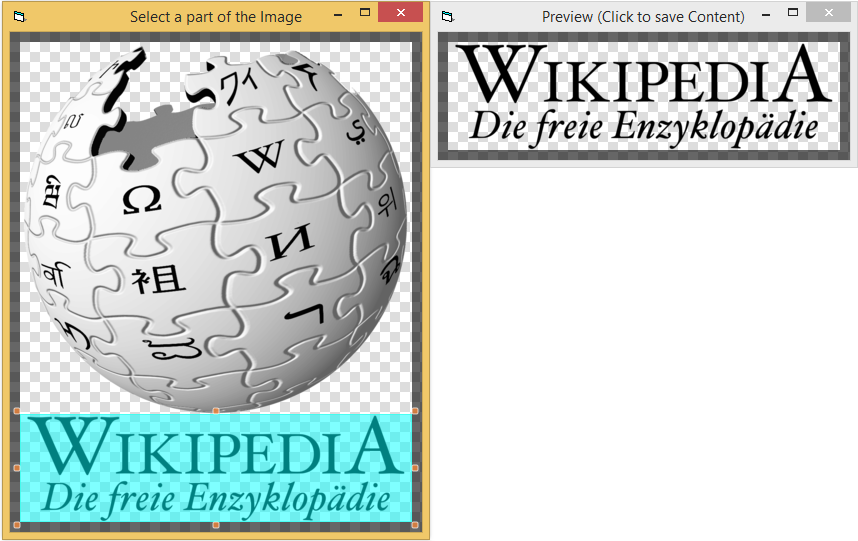
HTH - or gives some ideas for alternative implementations.
Olaf
-
Dec 15th, 2017, 03:46 PM
#8
Thread Starter
PowerPoster
Re: How to select a semi-transparent area on the picture with the mouse?
 Originally Posted by dilettante

AlphaBlend and GdiAlphaBlend are aliases for the very same function. GdiAlphaBlend is the non-preferred synonym.
Hi dilettante, thanks for your reply.
Originally Posted by baka
just GdiAlphaBlend,
one simple example:
create 2 pictureboxes, one you set to invisible and choose the backcolor you want to use.
the other picturebox, you use the mousemove event and when button is pressed, in that
you clear the picture (.cls) and then use the API:
GdiAlphaBlend Picture1.hDC, 0, 0, x, y, Picture2.hDC, 0, 0, 1, 1, 65536 * Alpha
where Alpha is 0-255
and lastly a refresh.
remember to set scalemode to "pixel" and autoredraw to true.
edit:
instead of ".cls" you could use bitblt to copy a picture/pattern you want to be used under it.
Hi baka, I have achieved the functionality according to your suggestion, thank you so much.
-
Dec 15th, 2017, 03:47 PM
#9
Thread Starter
PowerPoster
Re: How to select a semi-transparent area on the picture with the mouse?
Originally Posted by Schmidt
FWIW - I've shrinked down (to Demo-Size) a little tool I use here myself, to cut-out "Sub-PNGs" from larger PNG-Images.
Source-Format-wise it supports (besides PNG) also JPG, GIF and BMP.
(when compiled, you can Drop Image-Files from Explorer onto the App-Exe-Icon...)
Destination-Formats can be (popping up a File-Save-Dialogue by clicking the Preview-Form) either PNG or JPG.
The Demo does depend on vbRichClient5 - but uses no other dependencies (also no Controls on your VB-Form).
Open an empty StdExe-Project (and ensure a Project-Reference to vbRichClient5).
Rename the existing Form1 to frmImg - and put the following code into it:
...
...
HTH - or gives some ideas for alternative implementations.
Olaf
Olaf, your example is very nice, especially cwSelect can be resized by the mouse, which can reduce a lot of hand-writing code. Now I have three questions:
(1) I would like to adjust the size of the cwSelect by dragging its edges instead of through the anchors (8 red dots). Is it possible to do this by changing some properties of the cwSelect widget?
(2) Can the anchors (8 red dots) of the cwSelect be hidden by changing some properties of the widget?
(3) Is it possible to make the left and right edges resizable while the top and bottom edges fixed by changing some properties of the cwSelect widget?
Very grateful.
Last edited by dreammanor; Dec 15th, 2017 at 03:57 PM.
-
Dec 15th, 2017, 06:46 PM
#10
Re: How to select a semi-transparent area on the picture with the mouse?
Originally Posted by dreammanor
Olaf, your example is very nice, especially cwSelect can be resized by the mouse, which can reduce a lot of hand-writing code. Now I have three questions:
(1) I would like to adjust the size of the cwSelect by dragging its edges instead of through the anchors (8 red dots). Is it possible to do this by changing some properties of the cwSelect widget?
Since the Anchors are outside the Sel-Rectangle, they don't overlay what you want to select...
But you could of course deactivate this built-in mechanism (by setting WidgetRoot.DesignMode to its default-value False) -
and then "doing your own thing" within the cwSelect-Class (the W_MouseMove, W_MouseDown,etc. Events are very similar to what you have inside e.g. a VB-UserControl).
You can even save the efforts to implement your own Move-Handling, by simply enabling W.Moveable = True (inside cwSelect Class_Initialize).
W.MouseCursor-Properties are available as well - and can be switched inside W_MouseEvents, depending on "where you are inside W".
Originally Posted by dreammanor
(2) Can the anchors (8 red dots) of the cwSelect be hidden by changing some properties of the widget?
Yes - as said - simply comment out "pnlPic.WidgetRoot.DesignMode = True" (so that it retains its default-value: False).
Originally Posted by dreammanor
(3) Is it possible to make the left and right edges resizable while the top and bottom edges fixed by changing some properties of the cwSelect widget?
Yes, answered below point 1) - but I would leave it as it is - and instead (for more fine-control)
enable also the KeyBoards-ArrowKeys.
Just drop in the additional EventHandler below, to get KeyBoard-Support:
(ArrowKeys alone will move the TopLeft-Corner, <Ctrl>+ArrowKey will resize)
Code:
Private Sub pnlPic_KeyDown(KeyCode As Integer, Shift As Integer)
  If Not ((Shift = 0 Or Shift = 2) And fSel Is Me) Then Exit Sub
  Dim ps: ps = Sel.PosState
    Select Case KeyCode 'move the Selection per ArrowKeys (or resize by holding <Ctrl> down in addition)
      Case vbKeyLeft, vbKeyRight: ps(0 + Shift) = ps(0 + Shift) + KeyCode - 38
      Case vbKeyUp, vbKeyDown:    ps(1 + Shift) = ps(1 + Shift) + KeyCode - 39
    End Select
  If Join(ps) <> Join(Sel.PosState) Then Sel.PosState = ps: pnlPic_MouseUp 0, 0, 0, 0
End Sub
WIth that the proceeding would be:
- Drop a File onto your compiled "Exe-Icon"
- move the (per default covering all) Select-Rect roughly to the place it should be with the mouse
- deselect by "clicking elsewhere" (not onto the Sel-Rect)
- use the Arrow-Keys for FineTunig (watching either the CutOut-Result in the Preview-Window changing "live", or looking at what the Sel-Rect covers)
Olaf
-
Dec 16th, 2017, 12:23 PM
#11
Hyperactive Member
Re: How to select a semi-transparent area on the picture with the mouse?
@Olaf, Nice and useful little tool, thank you.
(when compiled, you can Drop Image-Files from Explorer onto the App-Exe-Icon...)
In my side it gives me an automation error in the line
Cairo.ImageList.AddImage "ImgSrc", Command$
when the filename has a space, like Image 1.png. It works after removing the space.
-
Dec 16th, 2017, 03:57 PM
#12
Re: How to select a semi-transparent area on the picture with the mouse?
Originally Posted by Carlos Rocha
In my side it gives me an automation error in the line
Cairo.ImageList.AddImage "ImgSrc", Command$
when the filename has a space, like Image 1.png. It works after removing the space.
Ah, well - the original did it with Ole-Drag&Drop - forgot about the usual CommandLine-sanitizing (regarding DoubleQuotes).
If you are at it, you can do it properly - using the Unicode-aware Version here:
Code:
Public Function CommandW() As String 'Unicode-Command$ replacement (based on an example from Bonnie West)
  CommandW = Command$ 'preset the result from the original function (for Project-Settings-Commandlines, defined in the IDE)
  If App.LogMode Then SysReAllocString VarPtr(CommandW), PathGetArgsW(GetCommandLineW) 'if not in IDE, call the Unicode-version
  If Left$(CommandW, 1) = """" Then CommandW = Mid$(CommandW, 2, Len(CommandW) - 2) 'sanitize (remove Double-Quotes, if existent)
End Function
The choking Line above then becoming:
Code:
... Cairo.ImageList.AddImage "ImgSrc", CommandW '<- use a proper Unicode-Version instead of Command$
Three Declares are needed for the replacement-function:
Code:
Private Declare Function GetCommandLineW Lib "kernel32" () As Long
Private Declare Function PathGetArgsW Lib "shlwapi" (ByVal pszPath As Long) As Long
Private Declare Function SysReAllocString Lib "oleaut32" (ByVal pBSTR As Long, Optional ByVal pszStrPtr As Long) As Long
Olaf
-
Dec 16th, 2017, 05:39 PM
#13
Hyperactive Member
Re: How to select a semi-transparent area on the picture with the mouse?
Perfect, thank you 
-
Dec 17th, 2017, 09:12 PM
#14
Thread Starter
PowerPoster
Re: How to select a semi-transparent area on the picture with the mouse?
Originally Posted by Schmidt
Just drop in the additional EventHandler below, to get KeyBoard-Support:
(ArrowKeys alone will move the TopLeft-Corner, <Ctrl>+ArrowKey will resize)
Code:
Private Sub pnlPic_KeyDown(KeyCode As Integer, Shift As Integer)
  If Not ((Shift = 0 Or Shift = 2) And fSel Is Me) Then Exit Sub
  Dim ps: ps = Sel.PosState
    Select Case KeyCode 'move the Selection per ArrowKeys (or resize by holding <Ctrl> down in addition)
      Case vbKeyLeft, vbKeyRight: ps(0 + Shift) = ps(0 + Shift) + KeyCode - 38
      Case vbKeyUp, vbKeyDown:    ps(1 + Shift) = ps(1 + Shift) + KeyCode - 39
    End Select
  If Join(ps) <> Join(Sel.PosState) Then Sel.PosState = ps: pnlPic_MouseUp 0, 0, 0, 0
End Sub
Olaf
It's wondeful.
Originally Posted by Schmidt
You can even save the efforts to implement your own Move-Handling, by simply enabling W.Moveable = True (inside cwSelect Class_Initialize).
W.MouseCursor-Properties are available as well - and can be switched inside W_MouseEvents, depending on "where you are inside W".
Olaf
The property "W.Moveable = True" is very convenient.
It would be great if you could add the following features to the Cairo.WidgetBase (similar to the Cairo.WidgetForms) in the next version of RC5:
"W.Resizable = True"
or
"W.BorderStyle = Sizable"
or
"W.ResizeMode = None/Horizontal/Vertical/Both".
This will make it much easier for others to use vbRichClient to develop their own FormDesigner or other controls that require Moving and Resizing.
There is a good control xFrame on PsCode:
http://www.planet-source-code.com/vb...74762&lngWId=1
In this control, there are more than 1000 lines of sourece code about moving and resizing. In contrast, vbRichClient5 only needs dozens of lines of code to do similar work, which can help us reduce a lot of hand-writing code. Thank you very much, Olaf.
Last edited by dreammanor; Dec 18th, 2017 at 07:44 AM.
 Posting Permissions
- You may not post new threads
- You may not post replies
- You may not post attachments
- You may not edit your posts
-
Forum Rules
|
Click Here to Expand Forum to Full Width
|



 Reply With Quote
