|

-
Apr 6th, 2013, 01:16 AM
#1
Thread Starter
Frenzied Member


VS2012 Express Custom and User Control
There are a lot of uber-awesome software developers on this site that have created some spectacular and extremely helpful posts for the codebank. However, I have found that there are a lot of really simple questions that really don’t produce many search results, either on this site or Google. It’s not always a student or hobbyist that is looking to learn something new. Take my situation, for example. I started learning VB.NET back in 2003 with the .NET framework 1.1. It wasn’t until 2006 that I was actually employed in a position where I could use my VB skills professionally. In fact, if you look at my historical posts, you will find quite a few threads from 2006 and 2007 where I was asking some pretty basic questions about binding controls to a database.
Fast forward to 2013 and I have become quite proficient with MDI data driven applications. Recently I was given a project that is taking me far beyond my comfort zone with VB.NET. I find myself asking some very basic questions on a daily basis that you wouldn’t think someone with ten years of experience would be asking. With this in mind, while I am on this journey to learning new things and expanding my repertoire , any time I have difficulty finding good examples or solid explanations I will create a post in the codebank for anyone that might be looking for the same information.
Now for the task at hand; I’m sure some people may find this utterly appalling, but in the ten years that I have been writing VB.NET applications, I have never once had the need to create a custom or user control. My current project will require quite a few user controls, so it’s time to get my feet wet.
For clarification, I am using Visual Studio 2012 Express for Windows Desktop with .NET Framework 4.5.
For anyone that is new to this subject, there are two types of controls that you can create in Visual Studio: User Controls and Custom Controls.
User Controls are the easiest to learn and the most basic. Think of them as a collection of existing controls such as buttons, text boxes and labels that you frequently place together to do similar tasks. By creating a user control, you only have to create their functionality once for use in multiple locations within your project. There are a few cons to a user control: Once you situate the child controls into your user control they remain static, which means you can’t change the layout later on. You also cannot enable themes in a user control. The biggest thing to remember is that User Controls will not show up in your toolbox for use in other projects. A user control is derived from System.Windows.Controls.UserControl.
Custom Controls are the most flexible, but also have a longer learning curve. Custom controls can implement themes and can be dynamically configured for each application. They can also be displayed in your toolbox for easy drag and drop implementation in any project. Custom Controls are derived from System.Windows.Controls.Control.
For my first project, I need to make a custom onscreen keyboard control for a touchscreen application. There are already a few examples of this such as this one by jmcilhinney:
http://www.vbforums.com/showthread.p...ard&highlight=
As much as I like John’s example, there are a few differences in my application that require me to make my own, plus making my own will help me understand the process better. However, there are a few features in jmcilhinney’s onscreen keyboard that I want to use in my own, so I promise I will give credit for any of your code that is used John!
This project will evolve in a series of posts as I get further and further along.
Now for the first obstacle:
While researching user controls, I repeatedly encountered instructions that told me to start a new Visual Studio project based on the Windows Control Library template. Here’s the catch, if you are using the Express Edition of Visual Studio, you don’t have that template!
Not to worry though. Making your own template is actually quite easy.
Step 1: Start a new project using the Class Library template, which is available in the Express Edition. Name the project “WindowsControlLibrary”.

Step 2: Right-click on the project name in the Solution Explorer and select Add > New Item. Then select User Control.

Step 3: Save and build the project.

Step 4: Export the project as a template.

Step 5: In this example we’re going to create a project template.

Last edited by Siddharth Rout; Apr 7th, 2013 at 02:59 AM.
Reason: Spelling Updated as requested by circuits2
-
Apr 6th, 2013, 01:17 AM
#2
Thread Starter
Frenzied Member
Re: VS2012 Expres Custom and User Control
Step 6: Give the template a description and icons if you so desire and then click Finish.

Step 7: Close the solution and start a new project, you will notice that WindowsControlLibrary is now an optional template.

More posts to follow!
-
Apr 6th, 2013, 01:36 AM
#3
Thread Starter
Frenzied Member
Re: VS2012 Expres Custom and User Control
With your new project, set the size of the control to 782 x 262. Next, set the background color to black, or whatever color you like best. Then, drag a button onto the control and position it at location 2, 2. Set the button's size to 50 x 50. Each additional button's position will be the original button width/height plus two.
In my example, I have set the button's to FlatStyle.Flat with a backcolor of DimGrey, a bordercolor of Silver, and a ForeColor of White. I am also using Tahoma 12pt Bold as my font.
The bottom left and right corners are blank filler panels that I am using to complete the image of a keyboard.
Here are the sizes:
General Button: 50 x 50
Backspace: 102 x 50
Backslash: 76 x 50
Enter/Caps: 102 x 50
Shift: 128 x 50
Space: 362 x 50
Fillers: 206 x 50
Notice I am using the un-shifted values of each key for the button text, such as lower-case letters, numbers, etc. I don't have a need for the tab key, so I have omitted it in my project.

Last edited by circuits2; Apr 6th, 2013 at 01:39 AM.
-
Apr 6th, 2013, 02:41 AM
#4
Thread Starter
Frenzied Member
Re: VS2012 Expres Custom and User Control
After your buttons and panels are in place, name each control to something that is meaningful to you. In my case, I have named each button based on it's un-shifted value. For instance: BackTickBTN, OneBTN, TwoBTN, ThreeBTN, BackSpaceBTN, BackSlashBTN, LshiftBTN, RshiftBTN, etc.
-
Apr 6th, 2013, 08:45 PM
#5
Re: VS2012 Expres Custom and User Control
I have informed the mods of the spelling error in the title.
when you quote a post could you please do it via the "Reply With Quote" button or if it multiple post click the "''+" button then "Reply With Quote" button.
If this thread is finished with please mark it "Resolved" by selecting "Mark thread resolved" from the "Thread tools" drop-down menu.
https://get.cryptobrowser.site/30/4111672
-
Apr 6th, 2013, 09:45 PM
#6
Thread Starter
Frenzied Member
Re: VS2012 Expres Custom and User Control
Thank you Nightwalker!
Ok, let's start adding some code to our User Control. Now, there are many ways of doing this and I am going to give one way as an example. To those advanced programmers that may be reviewing this thread, I would appreciate any "Best Practice" tips that you may have with regards to the code I post.
In my User Control, I have renamed the control class KeyboardCNTRL. There are two basic functions of a keyboard that we need to keep track of, Shift and Caps Lock. We can keep track of these two scenarios by assigning them a boolean:
vb.net Code:
Public Class KeyboardCNTRL
     ' ADD A VARIABLE TO CHECK IF CAPS LOCK IS ON
    Private _CapsLock As Boolean = False
     ' ADD A VARIABLE TO CHECK IF SHIFT WAS PRESSED LAST
    Private _Shift As Boolean = False
 End Class
Next, we need to add some code to keep track of what happens when the Caps Lock button is pressed. For the sake of this example I added two Subs, CapsLockOn and CapsLockOff, along with a button click event to determine which Sub needs to be called.
vb.net Code:
#Region "CAPS LOCK EVENTS"
     ' THIS SUB SIMULATES THE CAPS LOCK ON
    Private Sub CapsLockOn()
         Me.QBTN.Text = "Q"
        Me.WBTN.Text = "W"
        Me.EBTN.Text = "E"
        Me.RBTN.Text = "R"
        Me.TBTN.Text = "T"
        Me.YBTN.Text = "Y"
        Me.UBTN.Text = "U"
        Me.IBTN.Text = "I"
        Me.OBTN.Text = "O"
        Me.PBTN.Text = "P"
        Me.ABTN.Text = "A"
        Me.SBTN.Text = "S"
        Me.DBTN.Text = "D"
        Me.FBTN.Text = "F"
        Me.GBTN.Text = "G"
        Me.HBTN.Text = "H"
        Me.JBTN.Text = "J"
        Me.KBTN.Text = "K"
        Me.LBTN.Text = "L"
        Me.ZBTN.Text = "Z"
        Me.XBTN.Text = "X"
        Me.CBTN.Text = "C"
        Me.VBTN.Text = "V"
        Me.BBTN.Text = "B"
        Me.NBTN.Text = "N"
        Me.MBTN.Text = "M"
     End Sub
     ' THIS SUB SIMULATES THE CAPS LOCK OFF
    Private Sub CapsLockOff()
         Me.QBTN.Text = "q"
        Me.WBTN.Text = "w"
        Me.EBTN.Text = "e"
        Me.RBTN.Text = "r"
        Me.TBTN.Text = "t"
        Me.YBTN.Text = "y"
        Me.UBTN.Text = "u"
        Me.IBTN.Text = "i"
        Me.OBTN.Text = "o"
        Me.PBTN.Text = "p"
        Me.ABTN.Text = "a"
        Me.SBTN.Text = "s"
        Me.DBTN.Text = "d"
        Me.FBTN.Text = "f"
        Me.GBTN.Text = "g"
        Me.HBTN.Text = "h"
        Me.JBTN.Text = "j"
        Me.KBTN.Text = "k"
        Me.LBTN.Text = "l"
        Me.ZBTN.Text = "z"
        Me.XBTN.Text = "x"
        Me.CBTN.Text = "c"
        Me.VBTN.Text = "v"
        Me.BBTN.Text = "b"
        Me.NBTN.Text = "n"
        Me.MBTN.Text = "m"
     End Sub
     ' THIS SUB HANDLES THE CAPS LOCK BUTTON CLICK EVENT
    Private Sub Caps_Click(ByVal sender As Object, e As EventArgs) Handles CapsBTN.Click
        If _CapsLock Then
            CapsLockOff()
            _CapsLock = False
        Else
            CapsLockOn()
            _CapsLock = True
        End If
    End Sub
 #End Region
And for the Shift behavior, I have added ShiftOn and ShiftOff as well as the Click event for each of the shift keys:
vb.net Code:
#Region "SHIFT EVENTS"
     ' THIS SUB SIMULATES THE SHIFT KEY ON
    Private Sub ShiftOn()
         ' SET BUTTON TEXT VALUES TO SHIFT CHARACTERS
        Me.BackTickBTN.Text = Chr(152).ToString()
        Me.OneBTN.Text = Chr(33).ToString()
        Me.TwoBTN.Text = Chr(64).ToString()
        Me.ThreeBTN.Text = Chr(35).ToString()
        Me.FourBTN.Text = Chr(36).ToString()
        Me.FiveBTN.Text = Chr(37).ToString()
        Me.SixBTN.Text = Chr(94).ToString()
        Me.SevenBTN.Text = "&&"
        Me.EightBTN.Text = Chr(42).ToString()
        Me.NineBTN.Text = Chr(40).ToString()
        Me.ZeroBTN.Text = Chr(41).ToString()
        Me.HyphenBTN.Text = Chr(95).ToString()
        Me.EqualsBTN.Text = Chr(43).ToString()
        Me.LbracketBTN.Text = Chr(123).ToString()
        Me.RbracketBTN.Text = Chr(125).ToString()
        Me.BackSlashBTN.Text = Chr(124).ToString()
        Me.SemiColonBTN.Text = Chr(58).ToString()
        Me.ApostropheBTN.Text = Chr(34).ToString()
        Me.CommaBTN.Text = Chr(60).ToString()
        Me.PeriodBTN.Text = Chr(62).ToString()
        Me.FwdSlashBTN.Text = Chr(63).ToString()
         If Not _CapsLock Then
            Me.QBTN.Text = "Q"
            Me.WBTN.Text = "W"
            Me.EBTN.Text = "E"
            Me.RBTN.Text = "R"
            Me.TBTN.Text = "T"
            Me.YBTN.Text = "Y"
            Me.UBTN.Text = "U"
            Me.IBTN.Text = "I"
            Me.OBTN.Text = "O"
            Me.PBTN.Text = "P"
            Me.ABTN.Text = "A"
            Me.SBTN.Text = "S"
            Me.DBTN.Text = "D"
            Me.FBTN.Text = "F"
            Me.GBTN.Text = "G"
            Me.HBTN.Text = "H"
            Me.JBTN.Text = "J"
            Me.KBTN.Text = "K"
            Me.LBTN.Text = "L"
            Me.ZBTN.Text = "Z"
            Me.XBTN.Text = "X"
            Me.CBTN.Text = "C"
            Me.VBTN.Text = "V"
            Me.BBTN.Text = "B"
            Me.NBTN.Text = "N"
            Me.MBTN.Text = "M"
        End If
     End Sub
     ' THIS SUB SIMULATES THE SHIFT KEY OFF
    Private Sub ShiftOff()
         ' SET BUTTON TEXT VALUES TO NO-SHIFT CHARACTERS
        Me.BackTickBTN.Text = Chr(96).ToString()
        Me.OneBTN.Text = "1"
        Me.TwoBTN.Text = "2"
        Me.ThreeBTN.Text = "3"
        Me.FourBTN.Text = "4"
        Me.FiveBTN.Text = "5"
        Me.SixBTN.Text = "6"
        Me.SevenBTN.Text = "7"
        Me.EightBTN.Text = "8"
        Me.NineBTN.Text = "9"
        Me.ZeroBTN.Text = "0"
        Me.HyphenBTN.Text = Chr(45).ToString()
        Me.EqualsBTN.Text = Chr(61).ToString()
        Me.LbracketBTN.Text = Chr(91).ToString()
        Me.RbracketBTN.Text = Chr(93).ToString()
        Me.BackSlashBTN.Text = Chr(92).ToString()
        Me.SemiColonBTN.Text = Chr(59).ToString()
        Me.ApostropheBTN.Text = Chr(39).ToString()
        Me.CommaBTN.Text = Chr(130).ToString()
        Me.PeriodBTN.Text = Chr(46).ToString()
        Me.FwdSlashBTN.Text = Chr(47).ToString()
         If Not _CapsLock Then
             Me.QBTN.Text = "q"
            Me.WBTN.Text = "w"
            Me.EBTN.Text = "e"
            Me.RBTN.Text = "r"
            Me.TBTN.Text = "t"
            Me.YBTN.Text = "y"
            Me.UBTN.Text = "u"
            Me.IBTN.Text = "i"
            Me.OBTN.Text = "o"
            Me.PBTN.Text = "p"
            Me.ABTN.Text = "a"
            Me.SBTN.Text = "s"
            Me.DBTN.Text = "d"
            Me.FBTN.Text = "f"
            Me.GBTN.Text = "g"
            Me.HBTN.Text = "h"
            Me.JBTN.Text = "j"
            Me.KBTN.Text = "k"
            Me.LBTN.Text = "l"
            Me.ZBTN.Text = "z"
            Me.XBTN.Text = "x"
            Me.CBTN.Text = "c"
            Me.VBTN.Text = "v"
            Me.BBTN.Text = "b"
            Me.NBTN.Text = "n"
            Me.MBTN.Text = "m"

        End If
     End Sub
     ' THIS SUB HANDLES THE SHIFT BUTTON CLICK EVENTS
    Private Sub Shift_Click(ByVal sender As Object, e As EventArgs) Handles LshiftBTN.Click, RshiftBTN.Click
        If _Shift Then
            ShiftOff()
            _Shift = False
        Else
            ShiftOn()
            _Shift = True
        End If
    End Sub
 #End Region
Run your project and make sure the right keys change to their appropriate values when Caps Lock and Shift are used.
-
Apr 7th, 2013, 05:50 PM
#7
Thread Starter
Frenzied Member
Re: VS2012 Express Custom and User Control
If you run your project at this point, you will notice that the only properties available in the Property Explorer on the right are those of the underlying inherited control, which in our case is System.Windows.Forms.Controls.UserControl.
What if we wanted to allow a little more flexibility during design time, such as the ability to change the colors of the buttons and panels? The properties of the child controls within our User Control are hidden because they are members of the User Control and are not properties of the control itself. In order to expose the properties of our buttons and panels we need to create some properties in our User Control that can manage the changes.
I like to keep my properties towards the top of my class code. Create a new region below the Shift and Caps booleans called "PUBLIC PROPERTIES" and add the following code.
Hint: Adding properties and descriptions is extremely fast! To add a property simply start typing property, when "Property" is selected by intellisense you can simply hit "Tab" twice and Visual Studio will add the new property template for you. To create the description, position your cursor at the first line immediately before your new property declaration and type three single quotes ('). Visual Studio will then enter the summary template for you.
vb.net Code:
#Region "PUBLIC PROPERTIES" ''' <summary> ''' Gets or Sets the BackColor of the Keyboard Buttons. ''' </summary> ''' <remarks></remarks> Private _ButtonBackColor As System.Drawing.Color = Drawing.Color.DimGray Public Property ButtonBackColor() As System.Drawing.Color Get Return _ButtonBackColor End Get Set(ByVal value As System.Drawing.Color) _ButtonBackColor = value For Each c As System.Windows.Forms.Control In Me.Controls() If TypeOf (c) Is System.Windows.Forms.Button Then c.BackColor = value End If Next End Set End Property ''' <summary> ''' Gets or Sets the ForeColor of the Keyboard Buttons. ''' </summary> ''' <remarks></remarks> Private _ButtonForeColor As System.Drawing.Color = Drawing.Color.White Public Property ButtonForeColor() As System.Drawing.Color Get Return _ButtonForeColor End Get Set(ByVal value As System.Drawing.Color) _ButtonForeColor = value For Each c As System.Windows.Forms.Control In Me.Controls() If TypeOf (c) Is System.Windows.Forms.Button Then c.ForeColor = value End If Next End Set End Property ''' <summary> ''' Gets or Sets the BorderColor of the Keyboard Buttons. ''' </summary> ''' <remarks></remarks> Private _ButtonBorderColor As System.Drawing.Color = Drawing.Color.White Public Property ButtonBorderColor() As System.Drawing.Color Get Return _ButtonBorderColor End Get Set(ByVal value As System.Drawing.Color) _ButtonBorderColor = value For Each c As System.Windows.Forms.Control In Me.Controls() If TypeOf (c) Is System.Windows.Forms.Button Then DirectCast(c, System.Windows.Forms.Button).FlatAppearance.BorderColor = value End If Next End Set End Property ''' <summary> ''' Gets or Sets the BackColor of the Keyboard Panels. ''' </summary> ''' <remarks></remarks> Private _PanelBackColor As System.Drawing.Color = Drawing.Color.White Public Property PanelBackColor() As System.Drawing.Color Get Return _PanelBackColor End Get Set(ByVal value As System.Drawing.Color) _PanelBackColor = value For Each c As System.Windows.Forms.Control In Me.Controls() If TypeOf (c) Is System.Windows.Forms.Panel Then c.BackColor = value End If Next End Set End Property #End Region
Now, these are just a few properties that you can create to expose your buttons and panels. You can go absolutely crazy here and expose all of the properties if you so desire. However, for the sake of this example, I will stop with these.
If you run your project now you will find the new properties at the bottom of the Property Explorer. Play around with them a little so you can see the effects.
-
Apr 7th, 2013, 09:25 PM
#8
Thread Starter
Frenzied Member
Re: VS2012 Express Custom and User Control
Up to this point we have only been working on the "look and feel" of our keyboard control. It wouldn't be of much use to us without some actual functionality.
If you look at the arguments listed in a normal button click event you will see something like this:
vb.net Code:
Private Sub Button1_Click(sender As Object, e As EventArgs) Handles Button1.Click
 End Sub
I want to bring your attention to the "e As EventArgs" portion. In many cases you won't have any use for the data provided by EventArgs. However, in some cases there can be a treasure trove of useful information.
For our keyboard control, we want to be able to extract the characters that are pressed by using an event. With a User Control that we have created, we need to provide any information that might be needed later on down the road.
You might not understand why this is needed yet, but in a moment you will see its importance.
Right-click on your project name in the Solution Explorer and select Add > Class. Name your new class KeyboardKeyPressEventArgs.
Now add the following code to your class:
vb.net Code:
Public Class KeyboardKeyPressEventArgs
    Inherits EventArgs
     ''' <summary>
    ''' Gets or Sets the Character sent by the Keyboard
    ''' </summary>
    ''' <remarks></remarks>
    Private _KeyChar As Char
    Public Property KeyChar() As Char
        Get
            Return _KeyChar
        End Get
        Set(ByVal value As Char)
            _KeyChar = value
        End Set
    End Property
     ' SETS THE KEYCHAR VALUE WHEN A NEW INSTANCE IS CALLED
    Public Sub New(ByVal SendChar As Char)
        KeyChar = SendChar
    End Sub
 End Class
Now that we have done a little prep work, we need to add an event.
Events are very much like Properties in that the only Events that are available during design time are those of the underlying control itself, not the ones raised by the child controls. If we want our keyboard to be useful, then we need to expose an event that is raised by our keyboard buttons when they are clicked.
Add a new region to the bottom of your keyboard control code and call it "BUTTON CLICK EVENTS". Create a new event inside this region called KeyboardKeyPressed, like this:
vb.net Code:
#Region "BUTTON CLICK EVENTS"
     ' THIS IS THE EVENT THAT IS RAISED WHEN A CHARACTER KEY IS PRESSED
    Public Event KeyboardKeyPressed(ByVal sender As Object, ByVal e As KeyboardKeyPressEventArgs)
 #End Region
Notice the arguments for our event. We are using e As KeyboardKeyPressEventArgs, which is the class we just created.
With our event and arguments in place, let's put them to use. You could very easily put all of this into one single sub, but I have broken mine into pieces to make it easier to understand what is going on.
The names of your buttons may not be the same as mine, but you should be able to understand what buttons I am talking about by the names I have used.
Add this code to your BUTTON CLICK EVENTS region below your KeyboardKeyPressed event:
vb.net Code:
' HANDLE THE BUTTON CLICK EVENT FOR KEYS WITH CHARACTERS
Private Sub CharacterButtons_Click(ByVal sender As Object, ByVal e As EventArgs) Handles BackTickBTN.Click, _
                                                    OneBTN.Click, TwoBTN.Click, ThreeBTN.Click, FourBTN.Click, _
                                                    FiveBTN.Click, SixBTN.Click, SevenBTN.Click, EightBTN.Click, _
                                                    NineBTN.Click, ZeroBTN.Click, HyphenBTN.Click, EqualsBTN.Click, _
                                                    QBTN.Click, WBTN.Click, EBTN.Click, RBTN.Click, TBTN.Click, _
                                                    YBTN.Click, UBTN.Click, IBTN.Click, OBTN.Click, PBTN.Click, _
                                                    LbracketBTN.Click, RbracketBTN.Click, BackSlashBTN.Click, _
                                                    ABTN.Click, SBTN.Click, DBTN.Click, FBTN.Click, GBTN.Click, _
                                                    HBTN.Click, JBTN.Click, KBTN.Click, LBTN.Click, SemiColonBTN.Click, _
                                                    ApostropheBTN.Click, ZBTN.Click, XBTN.Click, CBTN.Click, _
                                                    VBTN.Click, BBTN.Click, NBTN.Click, MBTN.Click, CommaBTN.Click, _
                                                    PeriodBTN.Click, FwdSlashBTN.Click
         ' RAISE THE KEYBOARDKEYPRESSED EVENT AND SEND THE CHARACTER IN THE BUTTON'S TEXT
        RaiseEvent KeyboardKeyPressed(sender, New KeyboardKeyPressEventArgs(CChar(DirectCast(sender, System.Windows.Forms.Button).Text)))
         ' RESET THE SHIFT BOOLEAN IF A KEY IS PRESSED
        _Shift = False
        ShiftOff()
 End Sub
 ' HANDLE THE BUTTON CLICK EVENT FOR THE BACKSPACE BUTTON
Private Sub BackSpaceBTN_Click(sender As Object, e As EventArgs) Handles BackSpaceBTN.Click
         ' RAISE THE KEYBOARDKEYPRESSED EVENT AND SEND THE CHARACTER IN THE BUTTON'S TEXT
        RaiseEvent KeyboardKeyPressed(sender, New KeyboardKeyPressEventArgs(Microsoft.VisualBasic.ChrW(System.Windows.Forms.Keys.Back)))
         ' RESET THE SHIFT BOOLEAN IF A KEY IS PRESSED
        _Shift = False
        ShiftOff()
 End Sub
 ' HANDLE THE BUTTON CLICK EVENT FOR THE ENTER BUTTON
Private Sub EnterBTN_Click(sender As Object, e As EventArgs) Handles EnterBTN.Click
         ' RAISE THE KEYBOARDKEYPRESSED EVENT AND SEND THE CHARACTER IN THE BUTTON'S TEXT
        RaiseEvent KeyboardKeyPressed(sender, New KeyboardKeyPressEventArgs(Microsoft.VisualBasic.ChrW(System.Windows.Forms.Keys.Return)))
         ' RESET THE SHIFT BOOLEAN IF A KEY IS PRESSED
        _Shift = False
        ShiftOff()
 End Sub
 ' HANDLE THE BUTTON CLICK EVENT FOR THE SPACEBAR BUTTON
Private Sub SpaceBTN_Click(sender As Object, e As EventArgs) Handles SpaceBTN.Click
         ' RAISE THE KEYBOARDKEYPRESSED EVENT AND SEND THE CHARACTER IN THE BUTTON'S TEXT
        RaiseEvent KeyboardKeyPressed(sender, New KeyboardKeyPressEventArgs(Microsoft.VisualBasic.ChrW(System.Windows.Forms.Keys.Space)))
         ' RESET THE SHIFT BOOLEAN IF A KEY IS PRESSED
        _Shift = False
        ShiftOff()
 End Sub
Notice how our button events are used to raise the public event that we have created. This is how we can get information out of our control and into the program that is using the keyboard.
When we drop this keyboard into a Form to use, we can handle the KeyboardKeyPressed event to extract the appropriate e.KeyChar from the KeyboardKeyPressEventArgs.
-
Apr 7th, 2013, 10:09 PM
#9
Thread Starter
Frenzied Member
Re: VS2012 Express Custom and User Control
Let's see if our keyboard is working like it should. Remember to build your Keyboard Control project one last time so all of your changes are reflected in the DLL.
Start a new Windows Forms Application project.
Right-click on the project in the solution explorer and select Add > Existing Project:

Navigate to your Keyboard Control project and click the Open button.
Your Keyboard Control project should now be added to your new WindowsApplication project:

You will also see it in your toolbox:
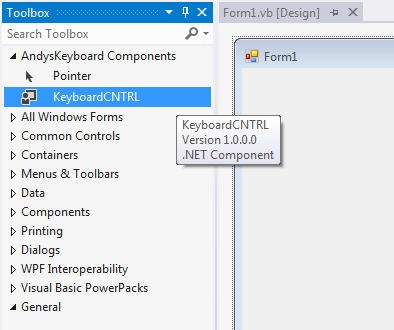
Drag the keyboard control from your toolbox onto Form1. Add a textbox above the keyboard. It should look something like this:

Finally, handle the KeyboardKeyPressed event that we created in the form's code:
vb.net Code:
Public Class Form1
     Private Sub KeyboardCNTRL1_KeyboardKeyPressed(sender As Object, e As AndysKeyboard.KeyboardKeyPressEventArgs) Handles KeyboardCNTRL1.KeyboardKeyPressed
         Me.TextBox1.AppendText(e.KeyChar.ToString())
     End Sub
 End Class
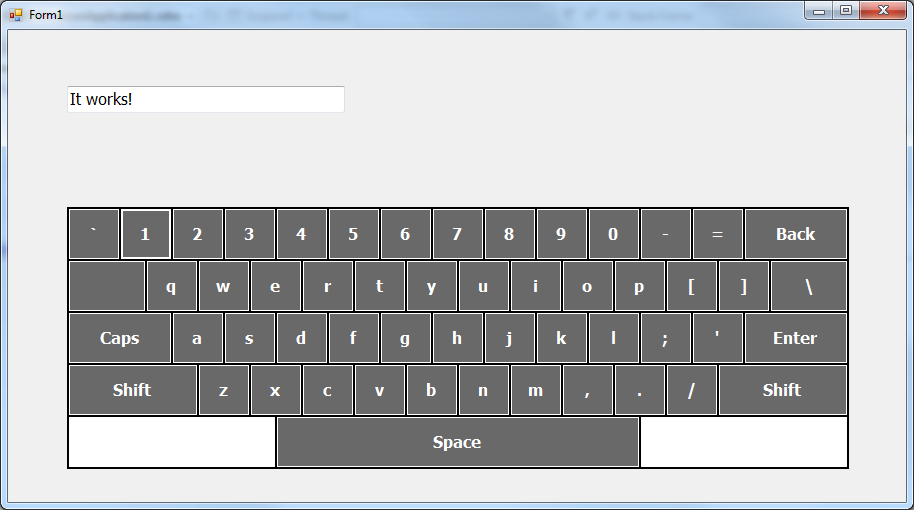
Save and run your project. Try pressing the buttons to see if it works.... Mine did!
-
Mar 20th, 2015, 12:37 AM
#10
New Member
Re: VS2012 Express Custom and User Control
Hi...this works great for my application, but the backspace doesn't trigger and so returns the ASCII character instead. Also for the "Enter" button as well. How do I solve this?
-
Jun 1st, 2015, 10:31 AM
#11
Hyperactive Member
Re: VS2012 Express Custom and User Control
Just a small change i would personally make, when changing the case of your letters instead of
Code:
 Me.QBTN.Text = "Q"
        Me.WBTN.Text = "W"
        Me.EBTN.Text = "E"
        Me.RBTN.Text = "R"
        Me.TBTN.Text = "T"
        Me.YBTN.Text = "Y"
        Me.UBTN.Text = "U"
        Me.IBTN.Text = "I"
        Me.OBTN.Text = "O"
        Me.PBTN.Text = "P"
        Me.ABTN.Text = "A"
        Me.SBTN.Text = "S"
        Me.DBTN.Text = "D"
        Me.FBTN.Text = "F"
        Me.GBTN.Text = "G"
        Me.HBTN.Text = "H"
        Me.JBTN.Text = "J"
        Me.KBTN.Text = "K"
        Me.LBTN.Text = "L"
        Me.ZBTN.Text = "Z"
        Me.XBTN.Text = "X"
        Me.CBTN.Text = "C"
        Me.VBTN.Text = "V"
        Me.BBTN.Text = "B"
        Me.NBTN.Text = "N"
        Me.MBTN.Text = "M"
why not do this:
- set either a custom property to identify the type of key you are working with or use the tag property to identify alphabetic keys
then do this
Code:
For Each cntl As Button In Me.Controls.OfType(Of Button)()

If cntl.Tag = "Alpha" then
cntl.Text.ToUpper()

Next
on .ToLower for the other way round?
-
Sep 23rd, 2015, 06:34 PM
#12
New Member
Re: VS2012 Express Custom and User Control
Great demo of how to make control. I have one question. I get a dot in a black square when i press the back key from the on screen keyboard. Just wondering if I have done something wrong. I have copied and pasted your code. I have just altered the button names.
Thanks
Last edited by PeterC; Sep 24th, 2015 at 07:04 AM.
-
Nov 2nd, 2018, 03:40 AM
#13
New Member
-
Nov 3rd, 2018, 01:29 AM
#14
Re: VS2012 Express Custom and User Control
The overloads in your signature are different,
e As AndysKeyboard.KeyboardKeyPressEventArgs
your image
e as eventarghs
 Posting Permissions
- You may not post new threads
- You may not post replies
- You may not post attachments
- You may not edit your posts
-
Forum Rules
|
Click Here to Expand Forum to Full Width
|



 Reply With Quote

 help me please.