|

-
Dec 5th, 2012, 12:02 AM
#1
Thread Starter
Junior Member

 [RESOLVED] Icon won't change on Explorer [RESOLVED] Icon won't change on Explorer
Hello guys!
So, I'm having a damn issue... I've changed my app's icon by doing this:
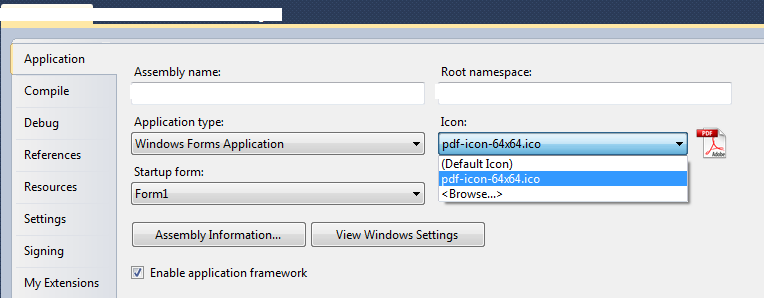
As you can see, there's only 1 icon in the history. But I've used others previously, so I did delete them...
The problem is: always when I change my app's icon by this way, the new build of my app is going to have the previous icon, not the new one! This occurs in the Explorer view... It seems that the old icons are attached to the previous name of my build, as you guys can see here:

If I change my app's name to the previous one (the name that I used when it had an old icon), the icon changes to the previous one! As you can see in the image, the EXEs are ALL the same (same build, same MD5), I've used 3 icons previously, and just because I renamed them, they change their icon.
If I use a new name to my app, the icon changes to a new one... I don't know how to explain this, it's really strange. I think this happened to me years ago and I had to figure out by myself, because I couldn't find anything in the internet.
I hope the images help, and I've already tried rebuilding Windows Icons Cache and rebooting the system...
Last edited by vitorc93; Dec 5th, 2012 at 12:30 AM.
-
Dec 5th, 2012, 12:13 AM
#2
Re: Icon won't change on Explorer
Did you try deleting your bin folder before recompiling ?
-
Dec 5th, 2012, 12:28 AM
#3
Thread Starter
Junior Member
Re: Icon won't change on Explorer
I've tried it right now, but the problem persists...
Here's one more image (as you can see, it's appearing in the left bottom corner the first icon that I used in my app (IE's icon), but in the file list view it's appearing the new one (PDF's icon)):
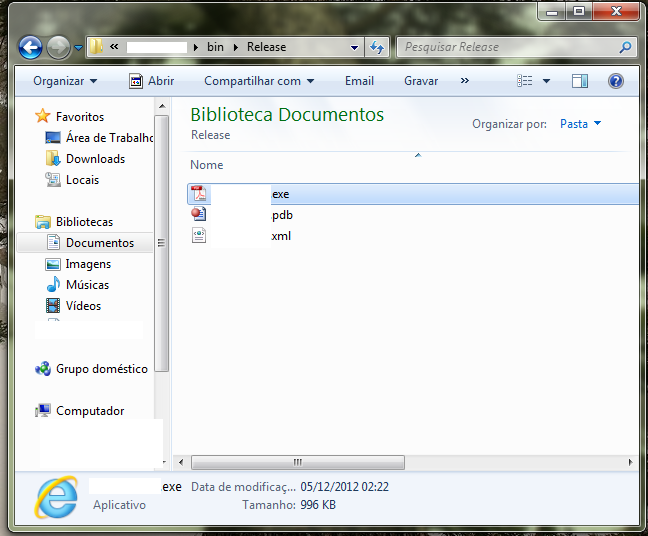
Seems to be a Windows problem, but, as I said, I've already tried rebuilding Windows Icons Cache.
-
Dec 5th, 2012, 02:12 AM
#4
Re: Icon won't change on Explorer
Give that, I'm almost certain it has something to do with Windows. There may not be anything you can do about that unfortunately. Sorry I couldn't give you a better answer.
-
Dec 5th, 2012, 10:09 AM
#5
Re: Icon won't change on Explorer
You are I think confusing the application icon and the shortcut icon. Try deleting the shortcut and creating a new one. It should now reflect the latest icon.
As the 6-dimensional mathematics professor said to the brain surgeon, "It ain't Rocket Science!"
Reviews: "dunfiddlin likes his DataTables" - jmcilhinney
Please be aware that whilst I will read private messages (one day!) I am unlikely to reply to anything that does not contain offers of cash, fame or marriage!
-
Dec 5th, 2012, 11:50 AM
#6
Thread Starter
Junior Member
Re: Icon won't change on Explorer
 Originally Posted by dunfiddlin

You are I think confusing the application icon and the shortcut icon. Try deleting the shortcut and creating a new one. It should now reflect the latest icon.
It's not a shortcut, its the application itself. You can see in the pictures, theres no "shortcut mark" in the icons.
Damn, I don't know what to do now :'(
I'm gonna test it in another computer.
-
Dec 5th, 2012, 12:10 PM
#7
Re: Icon won't change on Explorer
So you have iexplorer.exe stored in your desktop folder? I think not. If it was the actual application then it would have the only icon in the application on show. So whether you recognise this as a shortcut or not it is evidently an object other than the application .exe (or I'll eat my hat!) Even if it were the real thing you would lose nothing by deleting it. That's what the rebuild option's for.
As the 6-dimensional mathematics professor said to the brain surgeon, "It ain't Rocket Science!"
Reviews: "dunfiddlin likes his DataTables" - jmcilhinney
Please be aware that whilst I will read private messages (one day!) I am unlikely to reply to anything that does not contain offers of cash, fame or marriage!
-
Dec 5th, 2012, 12:28 PM
#8
Thread Starter
Junior Member
Re: Icon won't change on Explorer
I've tested in another computer and the problem didn't happened!!! So, probably its a problem with my Windows.
Originally Posted by dunfiddlin
So you have iexplorer.exe stored in your desktop folder? I think not. If it was the actual application then it would have the only icon in the application on show. So whether you recognise this as a shortcut or not it is evidently an object other than the application .exe (or I'll eat my hat!) Even if it were the real thing you would lose nothing by deleting it. That's what the rebuild option's for.
This is the problem. It was supposed to happen this, but it's not happening...
And, again, its not a shortcut, its the application EXE itself. THIS is the problem. They are all .exe files, same build, same hashes, the only difference beteween them is their name. When I change their name to the name that they had with an old icon, it changes to that old icon. Awkward, huh?
Please tell me if you hat tastes good hehe 
I'm gonna try to figure out what's happening to my Windows...
-
Dec 5th, 2012, 04:06 PM
#9
Re: Icon won't change on Explorer
It's because the image has been cached by Windows... when you gave the app a new name, it created a new reference... when you named it back, it picked up the old reference...
-tg
-
Dec 5th, 2012, 04:31 PM
#10
Thread Starter
Junior Member
Re: Icon won't change on Explorer
Originally Posted by techgnome
It's because the image has been cached by Windows... when you gave the app a new name, it created a new reference... when you named it back, it picked up the old reference...
-tg
Exactly this. Windows glitch...
Good news. The problem was related to my Windows installation. I've tried AGAIN deleting Windows Icon Cache and it worked. But this time I've tried in a "different way" (they were supposed to be the same, but, anyways).
First I've tried by running a batch file called Rebuild_Icon_Cache.bat, from here: http://www.sevenforums.com/tutorials...e-rebuild.html (OPTION ONE). But didn't work.
Now, I've tried by the manual way by following this:
1. Close all folder windows that are currently open.
2. Launch Task Manager using the CTRL+SHIFT+ESC key sequence, or by running taskmgr.exe.
3. In the Process tab, right-click on the Explorer.exe process and select End Process.
4. Click the End process button when asked for confirmation.
5. From the File menu of Task Manager, select New Task (Run…)
6. Type CMD.EXE, and click OK
7. In the Command Prompt window, type the commands one by one and press ENTER after each command:
CD /d %userprofile%\AppData\Local
DEL IconCache.db /a
EXIT
8. In Task Manager, click File, select New Task (Run…)
9. Type EXPLORER.EXE, and click OK.
Thanks to everyone who helped. I'm gonna mark the thread as RESOLVED so if someone gets the same problem as me, it's a little help.
 Posting Permissions
- You may not post new threads
- You may not post replies
- You may not post attachments
- You may not edit your posts
-
Forum Rules
|
Click Here to Expand Forum to Full Width
|



 Reply With Quote


