|

-
Apr 27th, 2006, 12:43 AM
#1
[FAQ's: OD] What are the types of Access Database Security?
Although Access can be secured, it can not be completely secure. You can add various types of security which give different levels of protection. If you need more security then you can encrypt the data thats in your Access database for the highest level of security.
The types are:
- Database Password.
- Access Workgroup Security.
- VBA Project Code Password Protection.
- Sandbox Mode
1. Database Password:
A database password is for protecting your database from being opened by double-clicking it in Windows Explorer or via code. It is the initial level of security and not completely secure. Access stores the password in an unencrypted form.
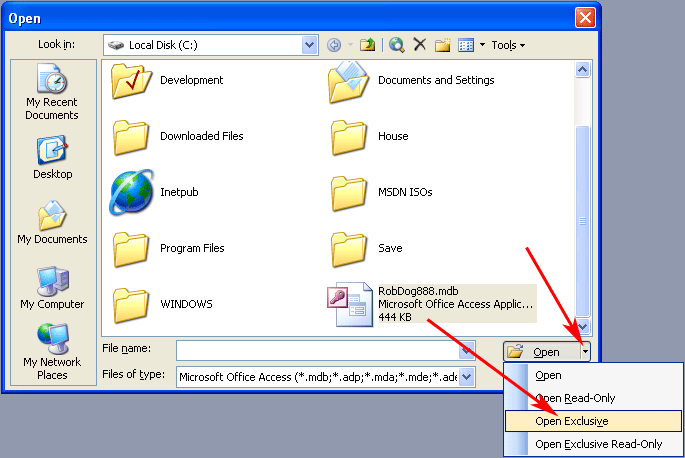
The database must be opened by yourself exclusively in order to set a password. Open Access and go to the menu - File > Open... > Then click the dropdown arrow next to the "Open" button to reveal the different modes for it to be opened in > Select "Open Exclusive" > click OK.
Fig. 1
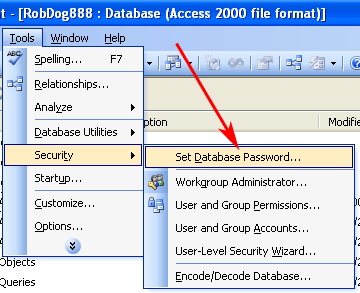
Once opened Exclusively you can set a database password by clicking on the menu - Tools > Security > Set Database Password...
Fig. 2
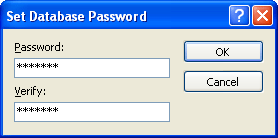
Then enter in your password and re-enter to confirm it. Write down your password or such in order to prevent you from forgetting it. Click OK and your done.
Fig. 3
2. Access Workgroup Security:
When user-level security has been defined for a workgroup, you can use a security account password. A security account password helps prevent unauthorized users from logging on using another user's name.
By default, Microsoft Access assigns a blank password to the default Admin user account and to any new user accounts that you create in your workgroup. As part of securing a database, it's important to add a password to:
The Admin user account (to activate the Logon dialog box).
The user account that owns the database and its tables, queries, forms, reports, and macros.
Any user accounts that you add to the Admins group.
In addition, you might want to add passwords to the accounts you create for users, or instruct users to add their own passwords.
Users can create or change their own user account passwords; however, only an administrator account can clear a password if a user forgets the password.
Download this Word document from Microsoft. Its compressed in an installation exe and tested as safe. When downloading you will get a Run/Save/Cancel dialog so choose Save and save it to a location on your hard drive. You will get a Microsoft install dialog for accepting the license terms when uncompressing/installing so click Yes.
SecFaq.exe
Informative Access Workgroup Security article on the Microsoft site:
http://support.microsoft.com/kb/305542/en-us
3. VBA Project Code Password Protection:
In addition, you can also set a Visual Basic for Applications (VBA) password. You use this password to help protect VBA code in standard modules and class modules (such as code behind forms and reports). This password is entered when you first attempt to open any VBA code and prevents unauthorized users from editing, cutting, pasting, copying, exporting, and deleting the code.
To set a VBA Project Password:
• Open the VBA IDE by pressing Alt+F11 or Tools > Macro > visual Basic Editor.
• Then in the VBA IDE, click the menu ... Tools > [Database Name] properties...
• Then a dialog window will display. Click the Protection tab > check the box - "Lock project for viewing". Type in a password in the password box and retype in the same password in the confirm password box. click OK and your done (Fig. 4).
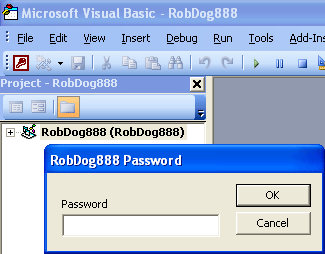
Close the database and reopen it. Open the VBA IDE and try to click on the project explorer window project node to open/expand the VBA classes and modules. you will be presented with the Password dialog box. Enter in your password and then the code will open/display (fig. 5).
Fig. 4
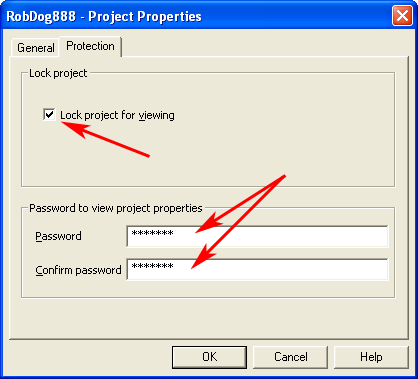
Fig. 5
4. Sandbox Mode:
http://support.microsoft.com/kb/294698/en-us
Sources: Access Help File and MSDN Online.
Last edited by RobDog888; Jul 8th, 2006 at 01:30 AM.
VB/Office Guru™ (AKA: Gangsta Yoda™  ®) ®)
I dont answer coding questions via PM. Please post a thread in the appropriate forum. 
Microsoft MVP 2006-2011
Office Development FAQ (C#, VB.NET, VB 6, VBA)
Senior Jedi Software Engineer MCP (VB 6 & .NET), BSEE, CET
If a post has helped you then Please Rate it! 
• Reps & Rating Posts • VS.NET on Vista • Multiple .NET Framework Versions • Office Primary Interop Assemblies • VB/Office Guru™ Word SpellChecker™.NET • VB/Office Guru™ Word SpellChecker™ VB6 • VB.NET Attributes Ex. • Outlook Global Address List • API Viewer utility • .NET API Viewer Utility •
System: Intel i7 6850K, Geforce GTX1060, Samsung M.2 1 TB & SATA 500 GB, 32 GBs DDR4 3300 Quad Channel RAM, 2 Viewsonic 24" LCDs, Windows 10, Office 2016, VS 2019, VB6 SP6
 Posting Permissions
- You may not post new threads
- You may not post replies
- You may not post attachments
- You may not edit your posts
-
Forum Rules
|
Click Here to Expand Forum to Full Width
|



 Reply With Quote