|

-
Jun 2nd, 2011, 02:44 AM
#1
Installing PHP 5.3 and Apache HTTP Server on Windows 7
If you just want to install Apache and aren't bothered about PHP, read Installing Apache HTTP Server on Windows 7.
Installing PHP
At the time of writing, the latest stable version is 5.3.6.
- Download PHP from this page:
http://windows.php.net/download/
Get the latest thread-safe VC9 binary in zip archive format.
- Extract the archive into a suitable directory — usually C:\php\.
- Navigate into this directory and rename the file php.ini-development to php.ini.
This will give you a configuration which is suitable for development work. (For example, all error messages and warnings will be shown.)
- Open a terminal window. Change into the directory where you extracted the files and run php -i. You should see rather a lot of output.

Installing Apache HTTP Server
At the time of writing, the latest stable version is 2.2.19.
- Download Apache from this page:
http://www.apachelounge.com/download/
Get the first link under the heading "Apache 2.2 win32 binary". It's another zip archive.
- Extract the archive. The default path is C:\apache2\.
(If you want to extract it elsewhere, look for that path in the httpd.conf file and change it to the path which you used.)
- Using your terminal window, change into the bin directory under the Apache directory, and run httpd -k install to install Apache as a service.

Ignore the message about the domain name, if it appears.
- Run httpd -k start to start the server.

Now navigate to http://localhost/ to see if it worked.
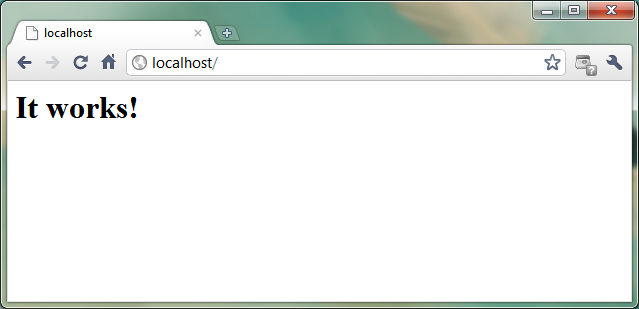
The file you are seeing is index.html, under htdocs in the Apache directory.
Configuring PHP as an Apache Module
- Edit the file conf\httpd.conf under the Apache directory.
Add the following to the bottom of the file:
Code:
LoadModule php5_module "c:/php/php5apache2_2.dll"
<IfModule php5_module>
	AddType application/x-httpd-php .php
	PHPIniDir c:/php/
	DirectoryIndex index.php index.html
</IfModule>
If you installed PHP into a different path, change the paths above.
- In the htdocs directory, create a file called test.php with the following contents:
Code:
<?php phpinfo(); ?>
- Restart Apache (httpd -k restart) to effect the changes we've made.
- Now navigate to http://localhost/test.php in your web browser.
You should see a page like this:

Great success!
Installing MySQL Server 5.5 on Windows 7
Last edited by penagate; Jun 2nd, 2011 at 04:36 AM.
 Posting Permissions
- You may not post new threads
- You may not post replies
- You may not post attachments
- You may not edit your posts
-
Forum Rules
|
Click Here to Expand Forum to Full Width
|



 Reply With Quote