|

-
May 1st, 2007, 04:45 PM
#1
 Installing and Running PHP 5 Under IIS 5 Installing and Running PHP 5 Under IIS 5
By the end of this tutorial you should be able to run PHP scripts through a Microsoft Internet Information Services web server.
This tutorial uses IIS version 5.1, as shipped with Windows XP Professional. The IIS 6 administration console is different but the steps in this tutorial may be adaptable to it.
Prerequisites
You will need to download the following:
- Latest version of PHP 5. Select the first zip package listed under "Windows Binaries".
You will need IIS installed. If this is not already present in your Windows installation, you can do so by heading to Control Panel, Add or Remove Programs, Add/Remove Windows Components. Scroll down to "Internet Information Services (IIS)" and click the checkbox beside it.
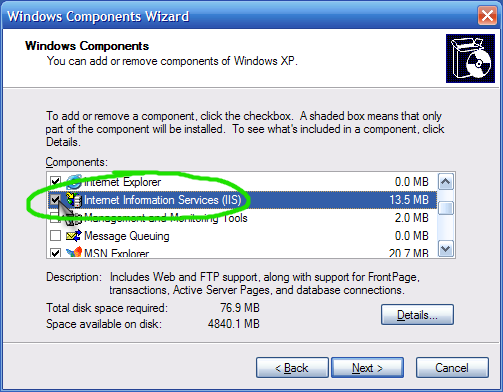
Click Next and follow the remaining steps. You will need to restart your computer to complete the installation.
Installing PHP
First, create a directory for PHP (e.g. c:\php\).
Extract the contents of the zip file into this newly created directory.
Next, make a copy of the file php.ini-recommended and name the copy php.ini.
This file contains all of the configuration settings for PHP. You do not need to alter any settings to begin with.
Configuring IIS
Finally, we need to set up IIS to handle PHP scripts.
Open the IIS administration console from Control Panel, Administrative Tools, Internet Information Services.
You should see a two-paned window. In the left-hand pane, click the + sign next to your local computer name, and the + next to Web Sites. You should then see Default Web Site. Right-click this and choose Properties.
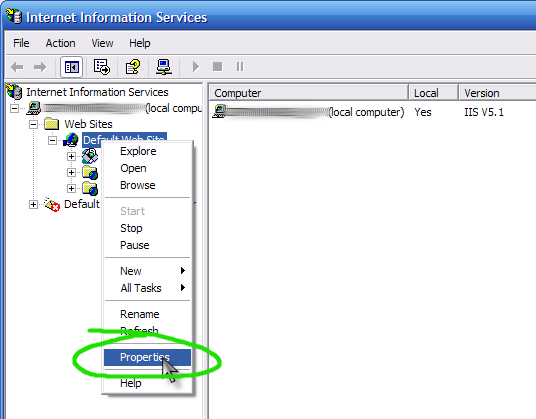
(If you already have another web server, such as Apache, running, you should at this point change the TCP Port setting from 80 to an alternative such as 800.)
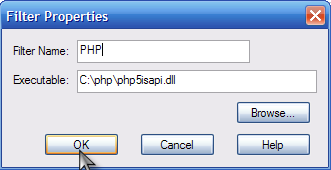
Click the ISAPI Filters tab. By default, there'll be no filters installed. Click the Add button. In the Filter Name field, type PHP. Then, click the Browse button. Browse to the folder in which you extracted the PHP files, then the /ext directory, and then select php5isapi.dll. Click OK and then OK to add the filter.
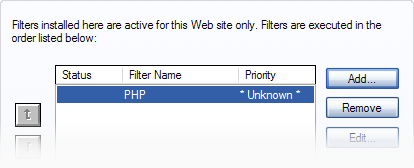
Next, go to the Home Directory tab.
Under Execute Permissions, make sure it is set to "Scripts only". Click the Configuration button to its right.
Here, we map the .php file extension to the PHP interpreter.
Click the Add button. In the Executable field, browse to php5isapi.dll as before. In the Extension field, type .php. Leave the other settings as default and click OK. You'll now see it listed under the other mappings.
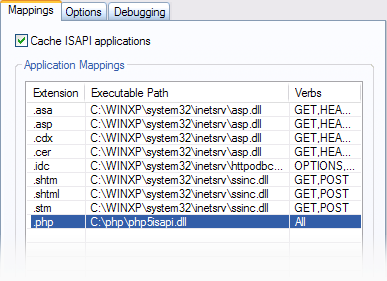
Click OK and OK.
The last thing thing to do in this dialogue box is to enable a PHP directory default file. Go to the Documents tab, click Add, and type index.php. You may use the arrow buttons to position this at the top if you wish.
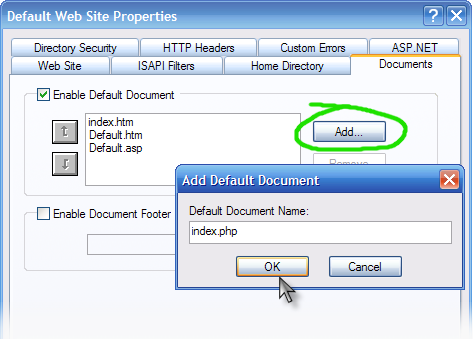
Click OK (and OK if a subsequent dialogue box opens) and Apply, OK.
Now, we need to restart IIS. Open up a terminal window by going to the Run dialogue (Win+R or Start Menu, Run) and typing cmd.
Stop IIS:
net stop iisadmin
Then start it again:
net start w3svc
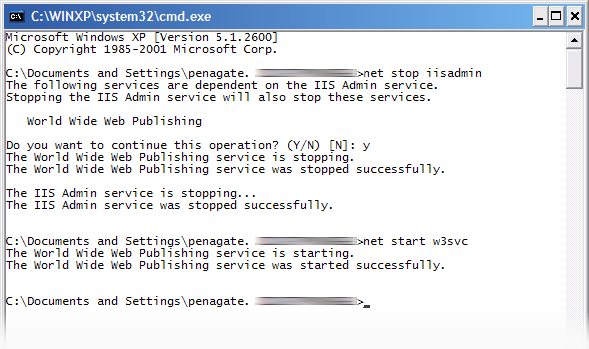
You should now have a working setup. Let's test it out.
Testing
Create a file in your wwwroot directory (usually C:\Inetpub\wwwroot\) called phpinfo.php.
In this file, type the following code:
PHP Code:
<?php

  phpinfo();

?>
Now, navigate to this file in your browser.
http://localhost/phpinfo.php
You should see a page like the following:
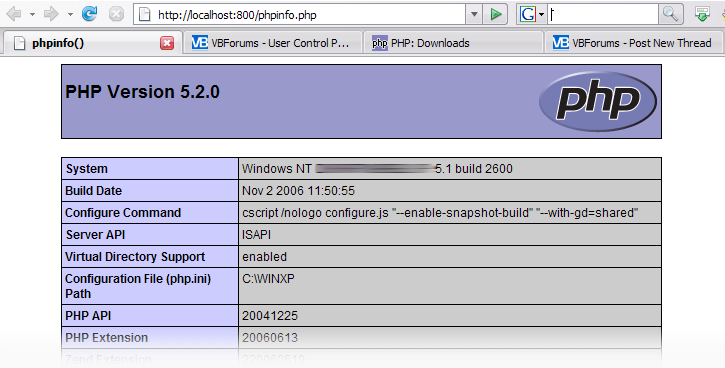
If you do, congratulations: you've successfully set up PHP under IIS.
If you have any problems, make a post in the PHP forum and we'll be happy to assist.
If you have any suggestions or feedback regarding this tutorial, you're welcome to reply here or send me a private message.
Copyright © 2007. Unauthorised reproduction strictly prohibited.
Last edited by penagate; Dec 6th, 2007 at 06:23 AM.
 Posting Permissions
- You may not post new threads
- You may not post replies
- You may not post attachments
- You may not edit your posts
-
Forum Rules
|
Click Here to Expand Forum to Full Width
|



 Reply With Quote