Option Explicit
'Add reference to MS CDO 1.21 Library
'Add reference to MS Office Outlook xx.x Object Library
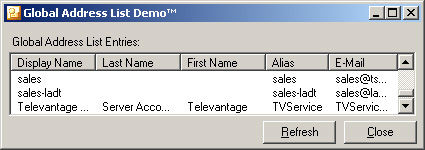
'Add listview control (lvwGAL) 'Project > Components > MS Windows Common Controls 6.0
'Add 2 command buttons (cmdClose) and (cmdRefresh)
Private moApp As Outlook.Application
Private moNS As Outlook.NameSpace
Private moCDO As MAPI.Session
 Private Const cdoPR_DISPLAY_NAME As Long = &H3001001E
Private Const cdoPR_ACCOUNT As Long = &H3A00001E
Private Const cdoPR_GIVEN_NAME As Long = &H3A06001E
Private Const cdoPR_SURNAME As Long = &H3A11001E
Private Const cdoPR_EMAIL As Long = &H39FE001E
 Private Sub cmdClose_Click()
    Unload Me
End Sub
 Private Sub cmdRefresh_Click()
    GetAddressCDO
End Sub
 Private Sub Form_Load()

    On Error GoTo No_Bugs

    'INITIALIZE OOM (JUST SO CDO CAN LOGON TO INSTANCE)
    Set moApp = GetObject(, "Outlook.Application")
    If TypeName(moApp) = "Nothing" Then
        Set moApp = New Outlook.Application
    End If
    Set moNS = moApp.GetNamespace("MAPI")
    'INITIALIZE CDO
    Set moCDO = CreateObject("MAPI.Session")
    moCDO.Logon "", "", False, False
    'INITIALIZE LISTVIEW
    With lvwGAL
        .FullRowSelect = True
        .LabelEdit = lvwManual
        .MultiSelect = False
        .View = lvwReport
        .ColumnHeaders.Add , , "", 0
        .ColumnHeaders.Add , , "Display Name", (.Width / 5) - 70
        .ColumnHeaders.Add , , "Last Name", (.Width / 5) - 70
        .ColumnHeaders.Add , , "First Name", (.Width / 5) - 70
        .ColumnHeaders.Add , , "Alias", (.Width / 5) - 70
        .ColumnHeaders.Add , , "E-Mail", (.Width / 5) - 70
        .Sorted = True
        .SortOrder = lvwAscending
        .SortKey = 1
    End With
    'POPULATE LISTVIEW
    GetAddressCDO
    Exit Sub

No_Bugs:
    If Err.Number = 429 Then
        Resume Next
    Else
        MsgBox Err.Number & " - " & Err.Description, vbOKOnly + vbExclamation
    End If
End Sub
 Private Sub Form_QueryUnload(Cancel As Integer, UnloadMode As Integer)
    moCDO.Logoff
    Set moCDO = Nothing
    Set moNS = Nothing
    Set moApp = Nothing
End Sub
 Private Sub lvwGAL_DblClick()
    On Error Resume Next
    Dim oDetails As Object
    Set oDetails = moCDO.GetAddressEntry(lvwGAL.SelectedItem)
    oDetails.Details
    Set oDetails = Nothing
End Sub
 Private Sub GetAddressCDO()
     On Error GoTo No_Bugs

    Dim oAEntries As Object
    Dim oAEntry As Object
    Dim oFields As Object
    Dim lvItm As ListItem
    Dim i As Integer
    Dim ii As Integer
    Dim iii As Integer
    Dim vDetails As Variant
    Dim lRet As Long

    lvwGAL.ListItems.Clear
    Set oAEntries = moCDO.AddressLists.Item("Global Address List").AddressEntries
    For i = 1 To oAEntries.Count
        Set oAEntry = oAEntries.Item(i)
        Set lvItm = lvwGAL.ListItems.Add(, , oAEntry.ID)
        'ITERATE THROUGH ALL FIELDS OF THIS ADDRESS ENTRY
        For ii = 1 To oAEntry.Fields.Count
            Set oFields = oAEntry.Fields(ii)
            vDetails = oFields.Value
            On Error Resume Next
            lRet = UBound(vDetails)
            If Err.Number = 0 Then
                'ITERATE THROUGH ALL VALUES FOR THIS ARRAY
                For iii = 0 To UBound(vDetails)
                    'Debug.Print "Field ID:  " & oFields.ID & "; Field Array #" & iii & ";Value:  " & vDetails(iii)
                Next
            Else
                'ADD SINGLE VALUES TO THE LISTVIEW
                If oFields.ID = cdoPR_DISPLAY_NAME Then
                    lvItm.SubItems(1) = vDetails
                ElseIf oFields.ID = cdoPR_SURNAME Then
                    lvItm.SubItems(2) = vDetails
                ElseIf oFields.ID = cdoPR_GIVEN_NAME Then
                    lvItm.SubItems(3) = vDetails
                ElseIf oFields.ID = cdoPR_ACCOUNT Then
                    lvItm.SubItems(4) = vDetails
                ElseIf oFields.ID = cdoPR_EMAIL Then
                    lvItm.SubItems(5) = vDetails
                End If
                'Debug.Print "Field ID:  " & oFields.ID & "; Value  " & vDetails
            End If
        Next
        Set lvItm = Nothing
    Next
    Set oAEntries = Nothing
    Set oAEntry = Nothing
    Set oFields = Nothing
    Exit Sub

No_Bugs:
    MsgBox Err.Number & " - " & Err.Description, vbOKOnly + vbExclamation
End Sub





 Reply With Quote