|

-
Dec 28th, 2005, 04:41 AM
#1
[FAQ's: OD] How do I add a custom image to the menu item or toolbar button?
To add a custom image to your toolbar button or menu item you need to use the .Picture property of the commandbarbutton object of an Office 2000 or newer application. If your running Office 2002 or newer then you will also have the .Mask property for creating an image with a "transparent" background.
Here is how the image and mask look zoomed in 800%
 
One important note: The .Picture and.Mask properties of a toolbar button or menu item are only valid for processes that dont attempt cross process marshalling such as the VBA ThisOutlookSession or other code in the VBA IDE. For a work around see my upcoming FAQ - "Why wont my custom image show on a menu item or toolbar button?"
Word 2003 VBA Code Example:
VB Code:
Option Explicit
 '<CREATE AN EVENT HANDLER>
Public WithEvents oCBBCustom As Office.CommandBarButton
 '<BUTTON CLICK EVENT PROCEDURE>
Private Sub oCBBCustom_Click(ByVal Ctrl As Office.CommandBarButton, CancelDefault As Boolean)
    MsgBox "Meow!!!"
End Sub
 Private Sub Document_Open()
     Dim oCB As Office.CommandBar
    Dim oCBBTools As Office.CommandBarPopup
     Dim oPic As stdole.IPictureDisp
    Dim oMask As stdole.IPictureDisp
     '<LOAD THE PICTURE AND MASK OBJECTS>
    Set oPic = LoadPicture("C:\Cat.bmp")
    Set oMask = LoadPicture("C:\CatMask.bmp")
     Set oCB = Application.CommandBars("Menu Bar")
    Set oCBBTools = oCB.Controls("&Tools")
    [color=darkgreen]'<ADD A NEW BUTTON>[/color]
    Set oCBBCustom = oCBBTools.Controls.Add(msoControlButton, 1, , , True) '<PLACE OUR CUSTOM ITEM AT THE BOTTOM>
    With oCBBCustom                                                        '<POSITION (0 BASED)>
        .Caption = "Meow!"
        .BeginGroup = True '<ADD A MENU SEPARATOR>
        .Enabled = True
        .Picture =  oPic '<OFFICE 2000 - 2007>
        .Mask = oMask '<OFFICE 2002 - 2007>
        .Visible = True
    End With
    'oCB.Reset '<TO RESET THE COMMANDBAR>
End Sub
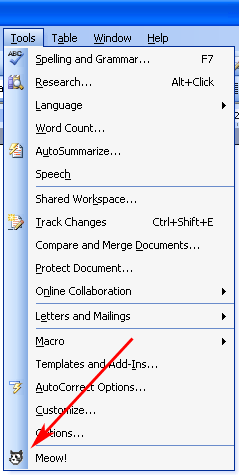 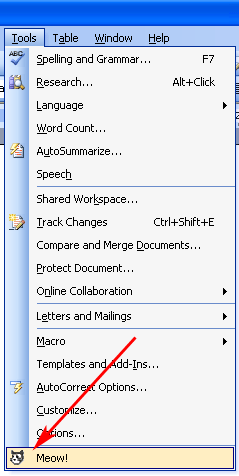
Last edited by RobDog888; Jun 5th, 2007 at 08:25 PM.
VB/Office Guru™ (AKA: Gangsta Yoda™  ®) ®)
I dont answer coding questions via PM. Please post a thread in the appropriate forum. 
Microsoft MVP 2006-2011
Office Development FAQ (C#, VB.NET, VB 6, VBA)
Senior Jedi Software Engineer MCP (VB 6 & .NET), BSEE, CET
If a post has helped you then Please Rate it! 
• Reps & Rating Posts • VS.NET on Vista • Multiple .NET Framework Versions • Office Primary Interop Assemblies • VB/Office Guru™ Word SpellChecker™.NET • VB/Office Guru™ Word SpellChecker™ VB6 • VB.NET Attributes Ex. • Outlook Global Address List • API Viewer utility • .NET API Viewer Utility •
System: Intel i7 6850K, Geforce GTX1060, Samsung M.2 1 TB & SATA 500 GB, 32 GBs DDR4 3300 Quad Channel RAM, 2 Viewsonic 24" LCDs, Windows 10, Office 2016, VS 2019, VB6 SP6
 Posting Permissions
- You may not post new threads
- You may not post replies
- You may not post attachments
- You may not edit your posts
-
Forum Rules
|
Click Here to Expand Forum to Full Width
|



 Reply With Quote