|

-
Nov 5th, 2005, 12:29 AM
#1
[FAQ's: OD] About Macros, Security Prompt, and Digital Certificates...
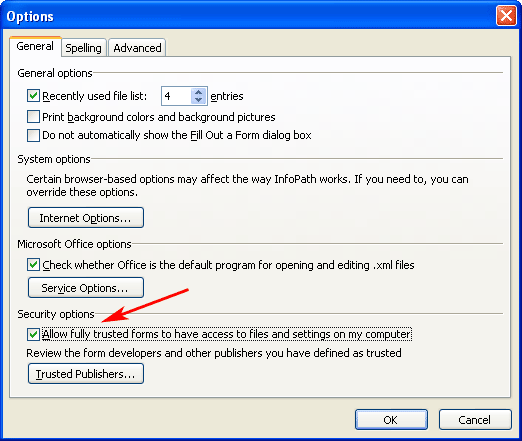
Macro Security is a useful tool/feature to help protect your computer from harmful and untrusted code. In most of the Office applications it can be accessed from the menu item "Tools > Macros > Security...". In InfoPath the location is "Tools > Options > General tab > Security options" to get to its security section as shown in Fig. 1
Fig. 1 (InfoPath Macro Security)
Basically if you run a program or Add-In that is not Digitally Signed, it will do one of a few things depending on your security levels.
- Run the program/code.
- Prompt you to run the program/code or not.
- Disable the program/code from running completely.
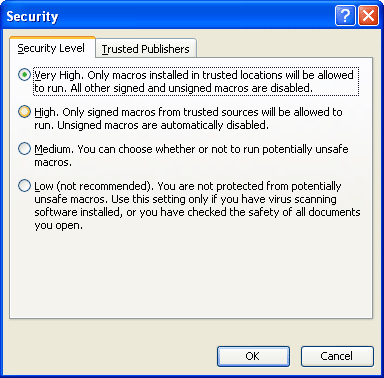
The Macro Dialog window displays 3 or 4 levels of security depending on your version of Office. Currently Office 2003 has four levels and 2002 and before have only three. Each level is described next to its option button. Fig. 2
Fig. 2
Note: You can not programmatically change the Macro Security level as that would defeat the purpose of having any security at all. 
To achieve a High level of security other then Low or Medium you must use a Digital Certificate either Public or Private. You can create a Private Certificate for use on your own system by using the SELFCERT.EXE utility included with Office. It is an optional feature to include when installing Office so you may or may not have it on your system. If you dont you can install it by going to your Add/Remove Programs applette in the Control Panel and Change your Office installation.
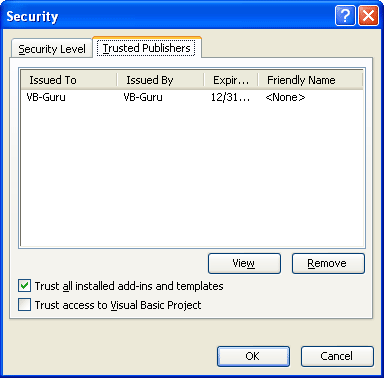
Once SELFCERT is installed you can use it to create your private certificate as shown in Fig. 3
Fig. 3
To make your Digital Certificate "Trusted"...
Export the Digital Certificate:
After you create your digital certificate view it like when you assign the digital certificate to your VBA project - Tools > Digital Signature > Choose... > Select your certificate > View Certificate > Details Tab > Copy to file... Then you will see the Certificate Export wizard. Click Next > Next > Next > Browse to where you want to save it to (*.cer) > Next > Finish.
Import the Certificate:
Browse to where you exported the certificate to and double click it and wait for it to display the certificate. Then click Install Certificate... > Next > Select "Place certificate in the following store." and browse to "Trusted Root Certification Authorities" > Next > Finish > Yes. Then your Trusted.
Sign Your Project:
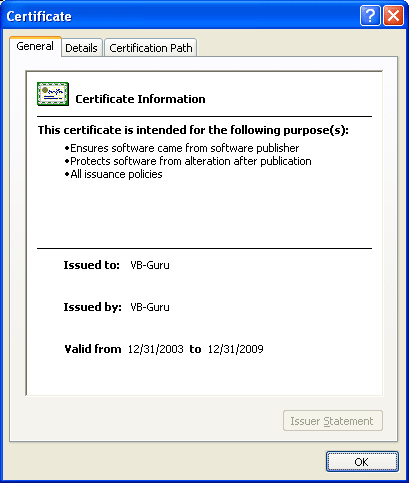
In the VBA editor click "Tools > Digital Signature..." and click "Choose" button and select the certificate you just created. This will attach the certificate to the project, signing the project as shown in Fig. 4.
Fig. 4
Outlook Security Prompts:
See my other FAQ thread Why do I get an Outlook Security Prompt? for specifics of Outlook and its Security Prompt.
Last edited by RobDog888; Aug 8th, 2006 at 04:00 PM.
VB/Office Guru™ (AKA: Gangsta Yoda™  ®) ®)
I dont answer coding questions via PM. Please post a thread in the appropriate forum.
Microsoft MVP 2006-2011
Office Development FAQ (C#, VB.NET, VB 6, VBA)
Senior Jedi Software Engineer MCP (VB 6 & .NET), BSEE, CET
If a post has helped you then Please Rate it! 
• Reps & Rating Posts • VS.NET on Vista • Multiple .NET Framework Versions • Office Primary Interop Assemblies • VB/Office Guru™ Word SpellChecker™.NET • VB/Office Guru™ Word SpellChecker™ VB6 • VB.NET Attributes Ex. • Outlook Global Address List • API Viewer utility • .NET API Viewer Utility •
System: Intel i7 6850K, Geforce GTX1060, Samsung M.2 1 TB & SATA 500 GB, 32 GBs DDR4 3300 Quad Channel RAM, 2 Viewsonic 24" LCDs, Windows 10, Office 2016, VS 2019, VB6 SP6
 Posting Permissions
- You may not post new threads
- You may not post replies
- You may not post attachments
- You may not edit your posts
-
Forum Rules
|
Click Here to Expand Forum to Full Width
|



 Reply With Quote