|

-
May 2nd, 2007, 04:51 PM
#2
Re: An Introduction to ADO.NET
Create another form, just like you did in part 1, with the same labels, textboxes and buttons. Add three more buttons there: btnAdd, btnUpdate, btnDelete. Don't forget to go into Project properties and set Form2 as the startup object.
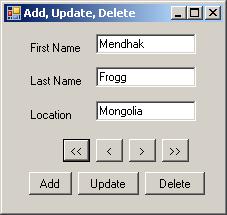
The code for Form Load, btnFirst, btnPrevious, btnNext and btnLast is almost the same as in the first form with a few small differences. Instead of filling the textboxes individually each time, we call a single method, FillFields() which looks at the intCurrentIndex variable and fills up the textboxes.
vb Code:
Private Sub FillFields()
        txtFirstName.Text = ds.Tables(0).Rows(intCurrentIndex).Item("FirstName").ToString()
        txtLastName.Text = ds.Tables(0).Rows(intCurrentIndex).Item("LastName").ToString()
        txtLocation.Text = ds.Tables(0).Rows(intCurrentIndex).Item("Location").ToString()
    End Sub
To call it from the btnPrevious click event, for example,
vb Code:
If intCurrentIndex > 0 Then  'We move back only if we're not at the first row.
            intCurrentIndex = intCurrentIndex - 1  'Subtract one from the current index.
            FillFields()
        Else
            MessageBox.Show("You're already at the first record.")
        End If
Also, move the declaration of the connection object and the dataadapter object to class level variables.
vb Code:
Dim ds As New DataSet()
    Dim intCurrentIndex As Integer = 0
    Dim da As New OleDbDataAdapter()
    Dim conn As New OleDbConnection()
You would then specify the dataadapter's select statement in the form's load event like so:
vb Code:
da.SelectCommand = New OleDbCommand("SELECT EmployeeID, FirstName, LastName, Location FROM tbl_Master")
        da.SelectCommand.Connection = conn
Your form should work as before.
Getting to the guts and purpose of this form now, we have to add a record, update a record and delete a record. ADO.NET provides many objects (and therefore ways) to accomplish this. You can use stored procedures with the OledbCommand object, or you can use SQL statements directly with the OleDbCommand object, or even use the Data Adapter to perform the updates for us.
There are different reasons for using each method, but for the purpose of this tutorial, I will continue in the theme of using the Data Adapter for this.
We start with the update method. Now, because our dataadapter filled our dataset for us, we can get the dataadapter to perform the update for us. All we need to do is tell it what to do when the time comes to update.
In the form's load event, specify the UpdateCommand property.
vb Code:
da.UpdateCommand = New OleDbCommand("UPDATE tbl_Master SET FirstName = @FirstName, LastName = @LastName, Location =@Location WHERE EmployeeID = @EmployeeID")
        da.UpdateCommand.Connection = conn
        da.UpdateCommand.Parameters.Add("@FirstName", OleDbType.VarChar, 40, "FirstName")
        da.UpdateCommand.Parameters.Add("@LastName", OleDbType.VarChar, 40, "LastName")
        da.UpdateCommand.Parameters.Add("@Location", OleDbType.VarChar, 40, "Location")
        da.UpdateCommand.Parameters.Add("@EmployeeID", OleDbType.Integer, 5, "EmployeeID")
If you don't understand this, don't let it daunt you. Go over it slowly and you'll see: @FirstName, @LastName, @Location and @EmployeeID are parameters in our UPDATE statement. The Parameters that we add in the subsequent lines take arguments which are the parameter name (@FirstName), the data type(OleDbType.VarChar), the size of the field (40) and the name of the column in the dataset which will contain the new value ("FirstName").
In the btnUpdate's click event, we can now ask the dataadapter to perform an udpate.
vb Code:
Dim dr As DataRow
        dr = ds.Tables(0).Rows(intCurrentIndex) 'This gets a reference to the row currently being edited
        dr.BeginEdit()
        dr("FirstName") = txtFirstName.Text
        dr("LastName") = txtLastName.Text
        dr("Location") = txtLocation.Text
        dr.EndEdit()
         da.Update(ds)  'Ask the dataadapter to call the UpdateCommand and update the database
        ds.AcceptChanges() 'Commits the change to the dataset.
Similarly, for inserting, in the form's load event, we specify the InsertCommand:
vb Code:
da.InsertCommand = New OleDbCommand("INSERT INTO tbl_Master(FirstName, LastName, Location) VALUES(@FirstName,@LastName,@Location)")
        da.InsertCommand.Connection = conn
        da.InsertCommand.Parameters.Add("@FirstName", OleDbType.VarChar, 40, "FirstName")
        da.InsertCommand.Parameters.Add("@LastName", OleDbType.VarChar, 40, "LastName")
        da.InsertCommand.Parameters.Add("@Location", OleDbType.VarChar, 40, "Location")
And in the btnAdd's click event:
vb Code:
Dim dr As DataRow
         dr = ds.Tables(0).NewRow()  'Gets a reference to a new row.
        dr("FirstName") = txtFirstName.Text
        dr("LastName") = txtLastName.Text
        dr("Location") = txtLocation.Text
         ds.Tables(0).Rows.Add(dr)
        da.Update(ds)
        ds.AcceptChanges()
Finally, to delete. In the form's load event, specify a DeleteCommand:
vb Code:
da.DeleteCommand = New OleDbCommand("DELETE FROM tbl_Master WHERE EmployeeID = @EmployeeID")
        da.DeleteCommand.Connection = conn
        da.DeleteCommand.Parameters.Add("@EmployeeID", OleDbType.Integer, 5, "EmployeeID")
And in the btnDelete's click event:
vb Code:
Dim dr As DataRow
        dr = ds.Tables(0).Rows(intCurrentIndex)
        dr.Delete() 'Delete the row
         da.Update(ds)
        ds.AcceptChanges()
There's a lot more that can be done of course, but this should have given you an introduction to ADO.NET to get you started off.
Other areas that I would recommend exploring are using ExecuteNonQuery() and also using stored procedures.
More ADO.NET tutorials can be found here:
http://samples.gotdotnet.com/quickst...sOverview.aspx
Many of you will be looking to work with SQL Server instead of access. The principles remain the same, just the namespace changes from System.Data.Oledb to System.Data.SqlClient. And you'd have SqlDataAdapter instead of OleDbDataAdapter, and so on.
Keywords:
ADO.NET
Tutorial
ADO
.NET
Database
Beacon
Mendhak
Guava
Last edited by mendhak; May 3rd, 2007 at 01:23 AM.
 Posting Permissions
- You may not post new threads
- You may not post replies
- You may not post attachments
- You may not edit your posts
-
Forum Rules
|
Click Here to Expand Forum to Full Width
|



