|

-
Mar 25th, 2007, 09:17 AM
#1
image size test
Using the Linux Shell Console
- by Wossname
Synopsis:
A fast intro to the Linux Shell Console, why and when to use it.
Assumptions I made when writing this tutorial:
- You've got a personal login account (ie, you're not the root user) to a Linux system - thats all you need really.
- I'll be using screenshots that are hopefully applicable equally well to either a GUI Linux install or a text-only install. The commands are absolutely identical for either in any case.
FYI: I'll be using my Fedora Core 4 server for the screenshots in this tutorial.
(For the nerds among you: Linux 2.6.17-1.2142_FC4 #1 Tue Jul 11 22:41:12 EDT 2006 i586 i586 i386 GNU/Linux)
-------------------
Console / Shell / Bash... What???
All of these words refer to the same thing, the text-based interface to the raw Linux operating system. It gives you complete control over everything you are ever likely to want to configure or alter on your Linux system. I'll call it "Console" for the purposes of this article but just so you know what we are talking about it looks like this on your screen...
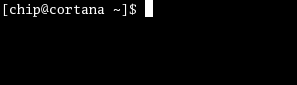
A) If your Linux install is text-only (ie. you didn't install the GUI components) then all you need to do is login using your username and password. This will place you at the console command prompt which looks just like the screenshot above.
B) If you DID go with the full GUI desktop Linux installation then you simply need to login to your desktop as usual. Once your desktop setup has loaded right-click on your wallpaper and select "Open Terminal". The console window will appear and the command prompt will be waiting for your input.
So now, on with the show...
I added a brand new user called chip and he is setup exactly as a new user would be, he has no files of his own yet and he has not configured anything yet. Chip has not even entered a single command yet.
Using the above screeny as an example, this is the default prompt which shows your username (chip) and the name of the linux box (cortana) you are using. Cortana is the name of my own linux box that I'll be using for this tutorial. The "~" symbol means that you are currently inside your own home directory. Each user has their own home directory which is separate and secure from all the other users. The "$" symbol means that you are logged in as a normal user.
Arguably the first thing you should learn how to do is get out of the console again!
Type:
exit
and hit enter. GUI users will see the console window disappear and be returned to their desktop. Non-GUI users will be logged out and taken back to the login screen, forcing them to login again in order to continue.
Now get back into the console again like you did before, so we can do something useful...
1. The ls command (ell ess)
Since you ("chip") are a brand new user, your home directory is empty.
If you are familiar with MS-DOS then the command for listing the contents of the current directory (dir) is familiar to you. Under Linux, we use ls instead. You will notice that all console commands are entered in lower-case. This is a convention that goes back many years, and since Unix / Linux based systems are case-sensitive you've got to get it right.
Go ahead and enter ls now to list the contents of your home folder...
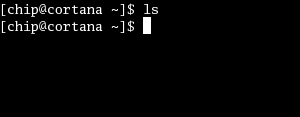
The fact that the command ended very quickly without telling you anything is proof that your home folder is empty. But you knew that already, so lets put something in your folder so you can see ls do its thing. enter this command...
mkdir mystuff
and then enter ls again...
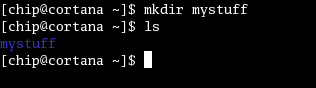
You've just used the mkdir command to make a directory called "mystuff". It has placed this new directory at your current location, which means that when you enter ls again, this time we get the name of your new folder appear.
Depending on your setup (and which distro of Linux you use) you might get coloured text in the console, then again you might not. It's irrelevant really, don't worry if your results look a little different.
2. The cd command.
DOS users will recognise this as "change directory". Enter:
cd mystuff
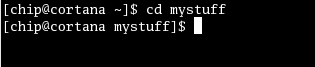
Now the "~" has changed to indicate that you've moved into the "mystuff" folder.
-------------
Wossy.
Feel free to PM me 
(This tutorial is Copyright wossname (C) 2007)
Last edited by wossname; Apr 10th, 2007 at 01:31 PM.
I don't live here any more.
 Posting Permissions
- You may not post new threads
- You may not post replies
- You may not post attachments
- You may not edit your posts
-
Forum Rules
|
Click Here to Expand Forum to Full Width
|



 Reply With Quote